
Pixelate Image Online
Drop an image, dial in the mosaic strength and download a pixel-perfect censor — processed right in your browser. Free, no signup, nothing uploaded.
Drag & drop an image here
or click to browse — JPG, PNG, WebP and more
Files are processed entirely on your device — nothing is uploaded to any server.
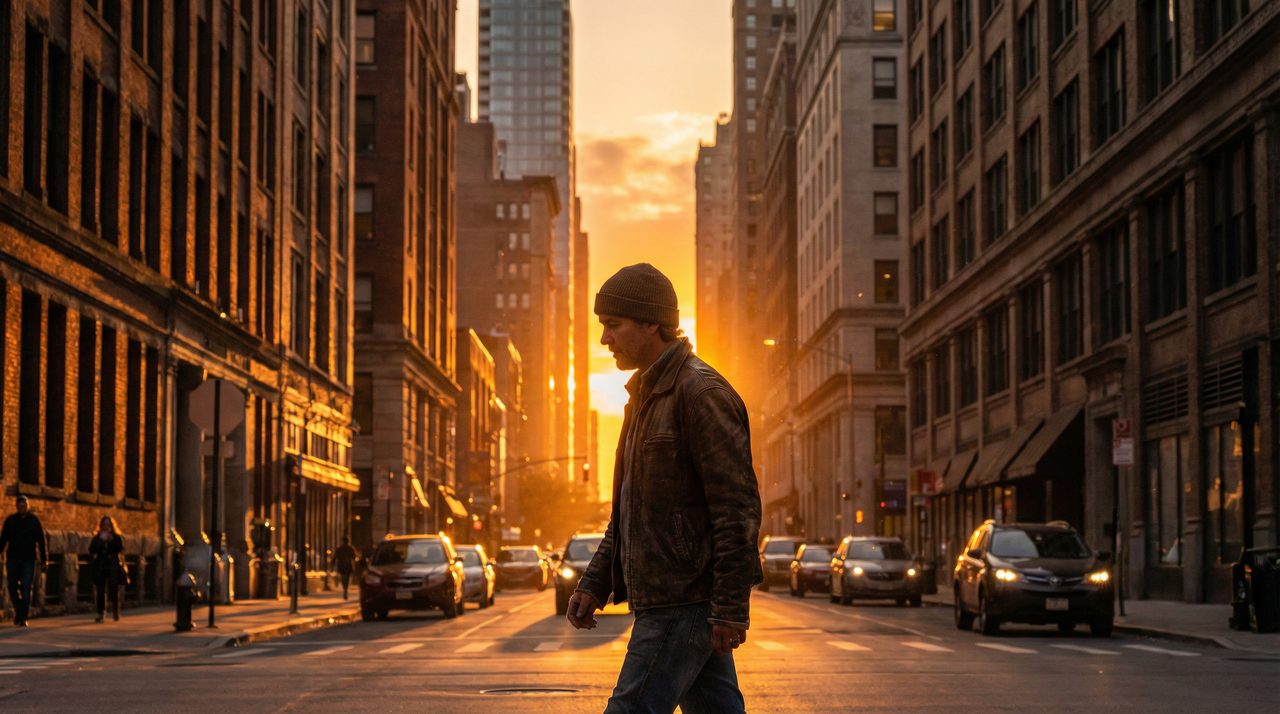
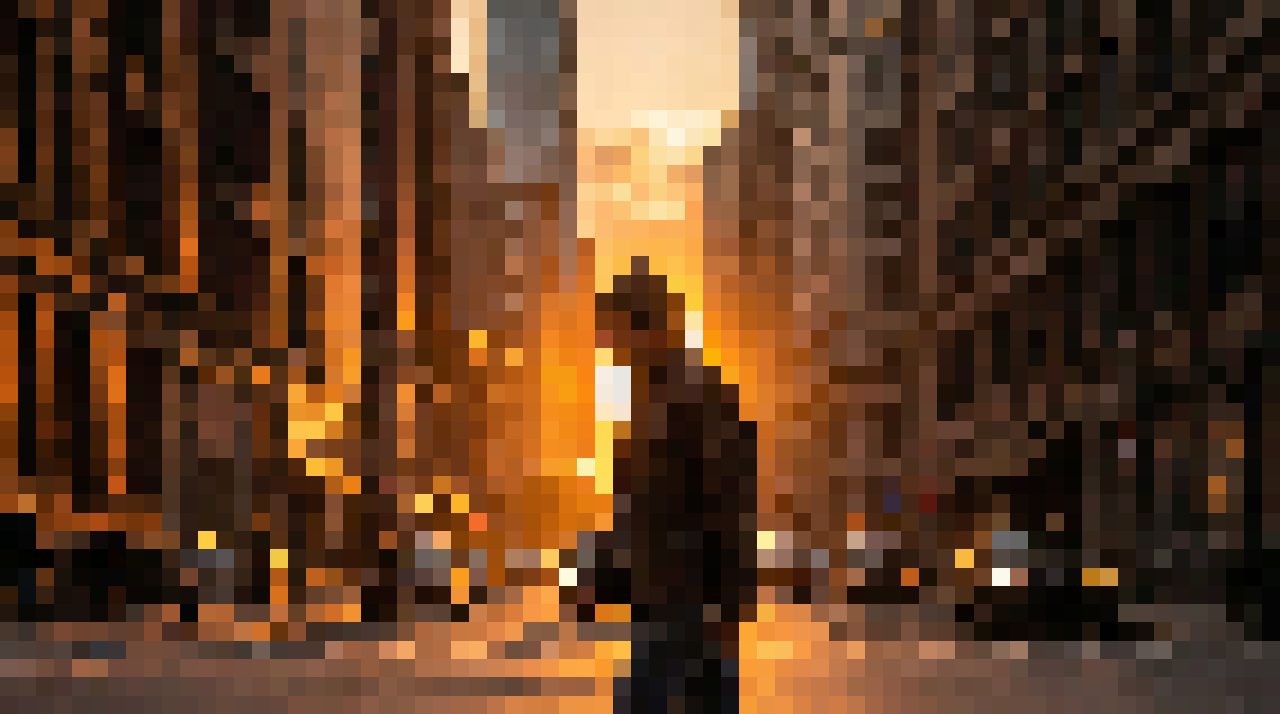
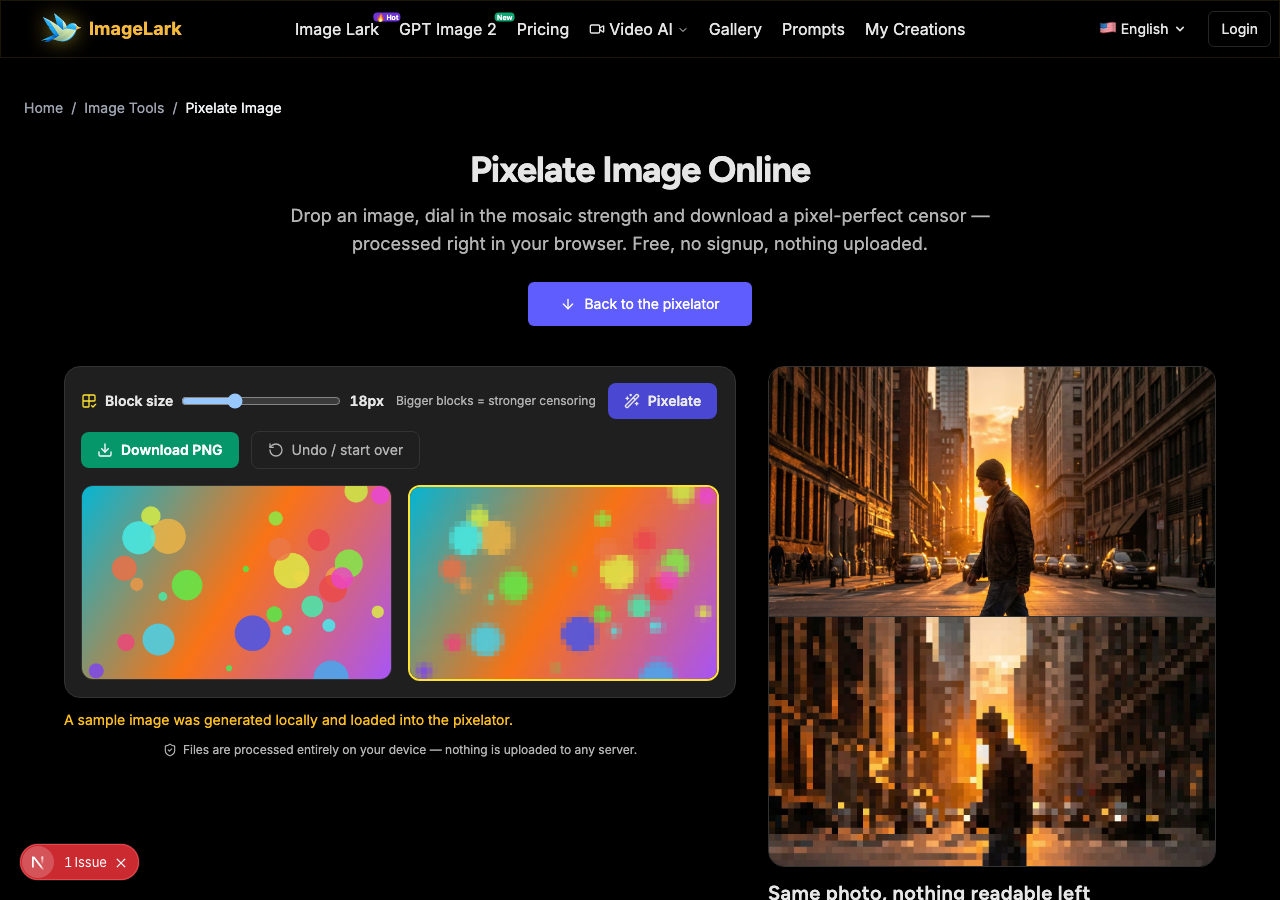
Same photo, nothing readable left
The original street scene on top; the same frame with 18-pixel blocks below. Faces, plates and signs dissolve into pure color — the mosaic way.
Free & unlimited
Censor as many images as you like.
100% private
Pixelated on your device — never uploaded.
Adjustable blocks
One slider controls mosaic strength.
Lossless PNG output
Download clean, no watermark.
Free Online Image Pixelator
This free online pixelate tool turns any photo into a mosaic: the image is divided into blocks and every block collapses to a single color, dissolving faces, license plates, signs and any detail you want unreadable. A single slider sets the block size, so you choose exactly how strong the censoring is — from a subtle retro effect to a wall of pure color.
Everything happens inside your browser tab: the image is pixelated locally with the Canvas API and never touches a server, so sensitive screenshots, ID photos and chat logs never leave your device. That matters more when you pixelate images than for almost any other edit — the whole point is that private information stays private, including from the tool doing the censoring. Pixelate image files as often as you like: there is no account, no watermark and no daily cap.
How to Pixelate an Image in 3 Steps
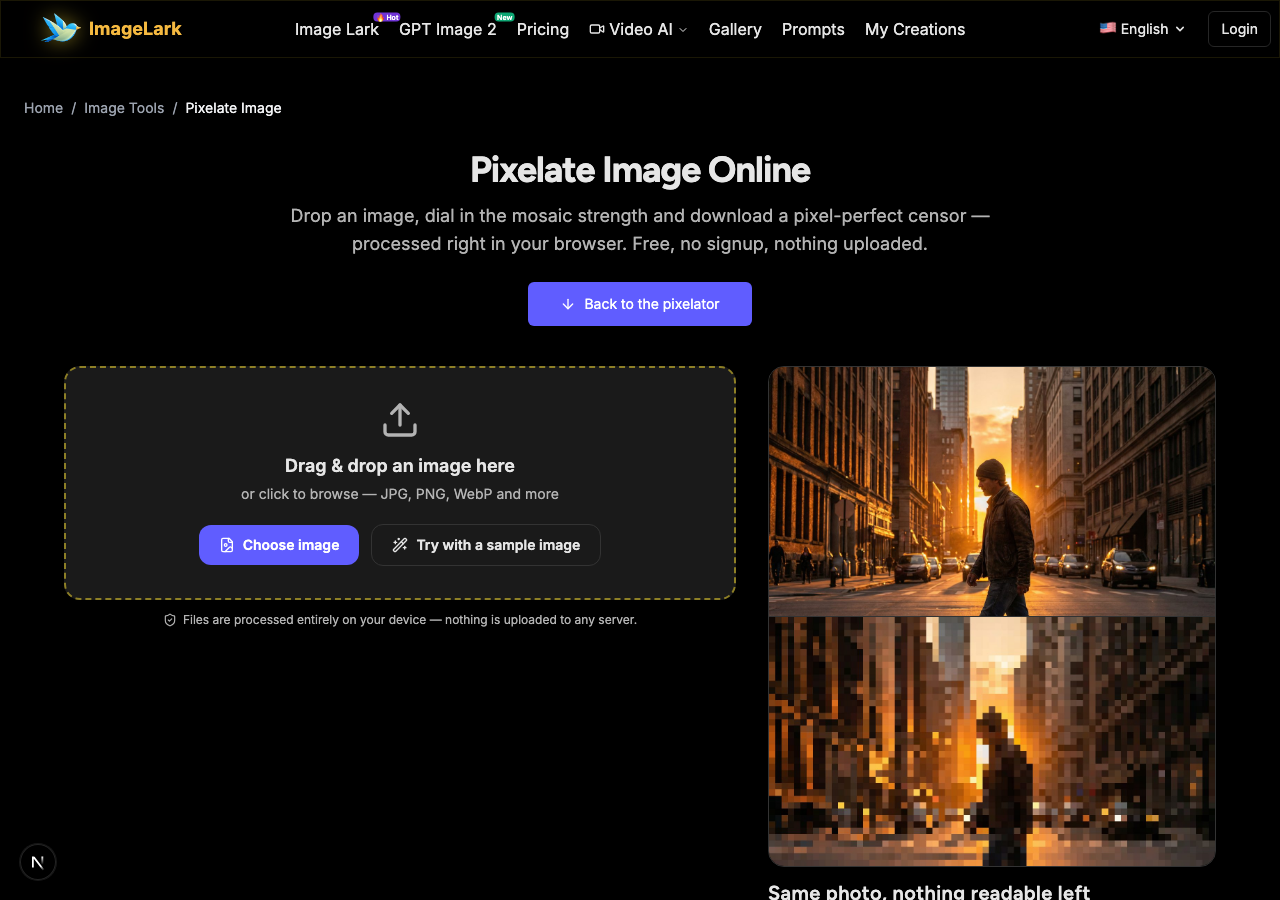
STEP 1
Add your image
Drag and drop a JPG, PNG or WebP file onto the tool above, or click to browse. You can also press “Try with a sample image” to see the mosaic effect instantly.
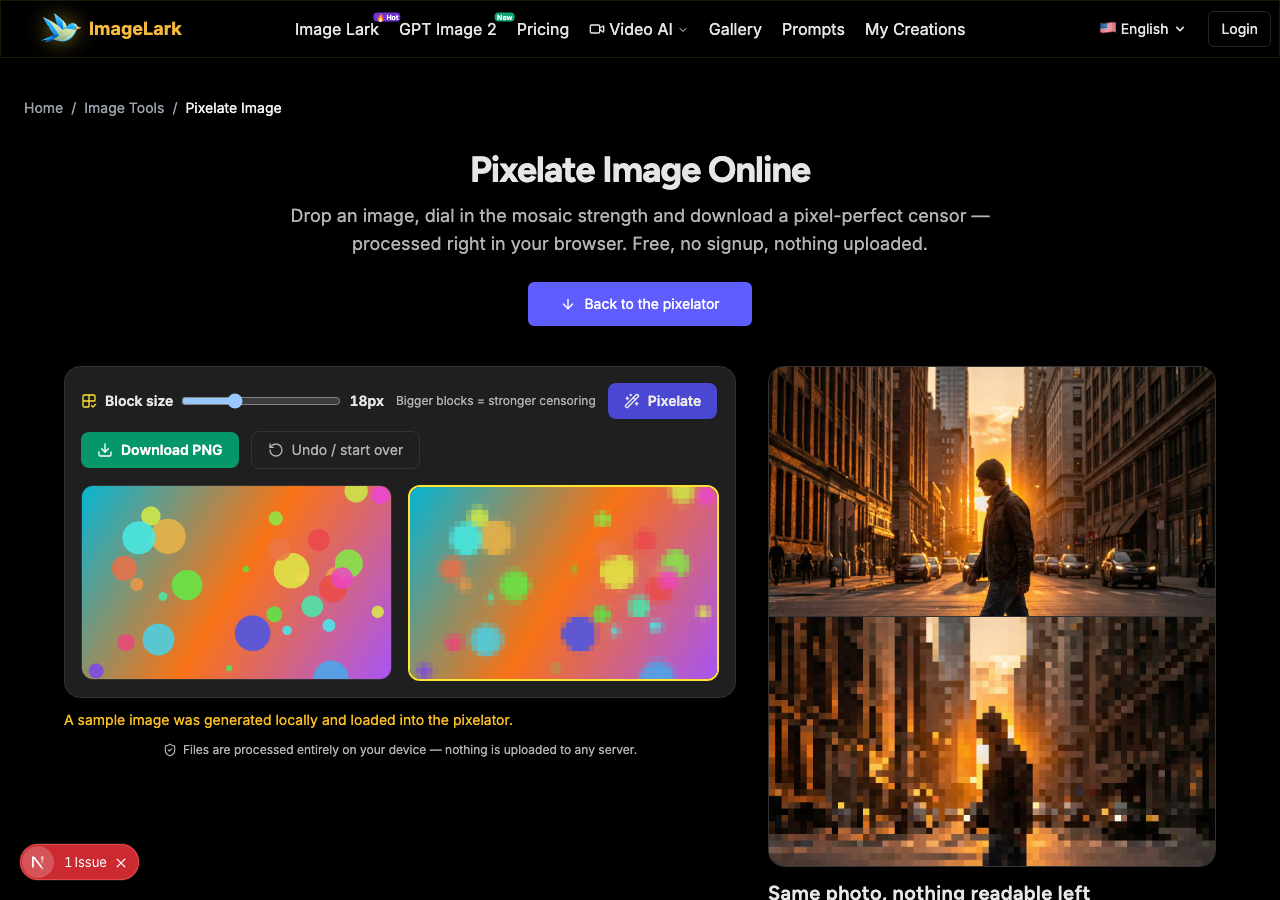
STEP 2
Dial in the block size
Move the block-size slider — small blocks keep the photo recognizable with a retro feel, large blocks destroy all detail. Press “Pixelate” and the preview updates instantly.
STEP 3
Download the censored image
Happy with the mosaic? Download it as a clean, watermark-free PNG. Need a different strength? Slide, re-apply and compare — the original stays untouched until you download.
Why Use ImageLark to Pixelate Images
Free with no limits
Censor one screenshot or a whole folder of frames — no credits, no account, no watermark on the output. It is a browser tool, not a trial.
True mosaic, not a blur preset
Blocks are real: every region collapses to one flat color at your chosen size, which is far harder to reverse than a soft blur — the standard for hiding faces, plates and account numbers.
Your images never leave your device
Pixelation runs in your browser tab. Nothing is uploaded, so the very information you are censoring is never exposed to a third party — the privacy-preserving way to redact.
One slider, instant preview
Dial the block size and see the result immediately. Compare strengths side by side before you commit — no downloads just to check whether a face is still readable.
Pixelate vs Blur: Which Censor Should You Use?
Pixelation and blur both destroy detail, but they fail differently — and that difference decides which one protects your information. Pixelation replaces regions with flat color blocks: the original pixels are genuinely discarded, and recovering them means inventing content from a handful of color samples.
A gaussian blur, by contrast, smooths pixels together but keeps a surprising amount of structure: with the right deconvolution tools, a blurred face or a blurred line of text can sometimes be restored close to readable — especially if the blur radius was small. That is why security guidance generally prefers solid redaction or heavy pixelation over light blur for anything sensitive.
Practical rule of thumb: for faces, plates and text you truly want gone, pixelate with blocks large enough that nothing legible remains — or better, crop the region out entirely. Save blur for artistic effects: fake depth of field, soft backgrounds, dreamy landscapes. And when the sensitive detail sits in a corner you can simply remove, an AI object remover deletes it cleanly instead of covering it.
More quick transforms: the image splitter cuts photos into grid tiles, the image rotator fixes sideways photos, and the invert colors tool creates negatives.
Use Cases: Who Pixelates Images
Privacy & redaction
Hide faces of bystanders, license plates, house numbers, badges and ID numbers in photos before sharing them publicly — the information dissolves into flat blocks.
Screenshot hygiene
Censor chat logs, account balances, emails and tokens in support tickets and bug reports — pixelate locally so sensitive data never even reaches the tool's server.
Retro & game aesthetics
Turn modern photos into 8-bit-style mosaics for thumbnails, NFT-adjacent art and game assets — the same slider doubles as a creative pixel-art effect.
Frequently Asked Questions
How do I pixelate part of an image?
This tool pixelates the whole image with one slider — the fastest path when the entire frame needs censoring. For a single face or plate in an otherwise clean photo, crop the region first, pixelate it here, then paste it back in any editor. Or describe the edit to the AI image editor and let it handle the selection. Either way you can pixelate image regions without uploading the photo anywhere.
Can pixelation be reversed or decoded?
Genuine mosaic pixelation cannot be meaningfully reversed: each block destroys all but one color sample of the original pixels. Reconstruction tools can only guess. Use blocks large enough that the hidden content has no readable structure left — small 4-pixel blocks over text may still leave letter shapes.
How do I pixelate faces in a photo?
Load the photo, push the block size high enough that facial features disappear (around 24–40 pixels for most phone photos), apply and download. The preview shows you exactly what an observer would see before you save.
Is pixelating enough to hide information?
Yes, when the blocks are large relative to the hidden content. The rule: shrink the block preview until YOU cannot read it, then double the block size. For maximum assurance on critical redactions, solid-color redaction or cropping beats every effect.
What's the difference between pixelate and blur?
Pixelation discards detail into flat color blocks and is effectively irreversible; blur smooths pixels while keeping structure, and lighter blurs can sometimes be computationally reversed. For censoring, pixelate. For artistic softness, blur.
Is the pixelate tool free to use?
Completely free with no signup, no watermark and no daily limit. Pixelation runs locally in your browser, so the images you censor are never uploaded — and the tool works offline once loaded.
أدوات الصور بالذكاء الاصطناعي ذات الصلة
Ready to Pixelate Your Image?
Drop it above, slide the block size and download a clean mosaic in seconds — free, private, watermark-free.