Image Resizer Online
Drop an image, set the exact dimensions and download lossless-resized output — aspect-ratio lock and presets included. Runs in your browser, free.
Drag & drop an image here
or click to browse — JPG, PNG, WebP and more
Files are processed entirely on your device — nothing is uploaded to any server.
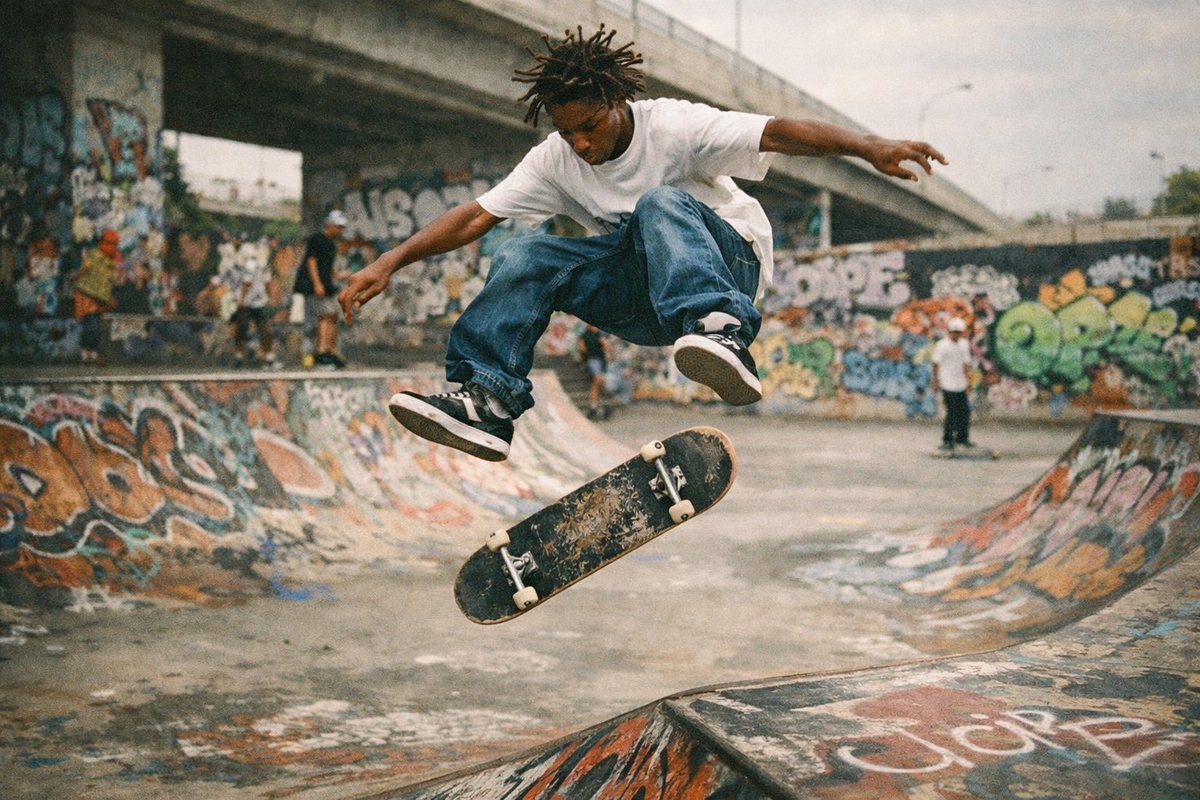
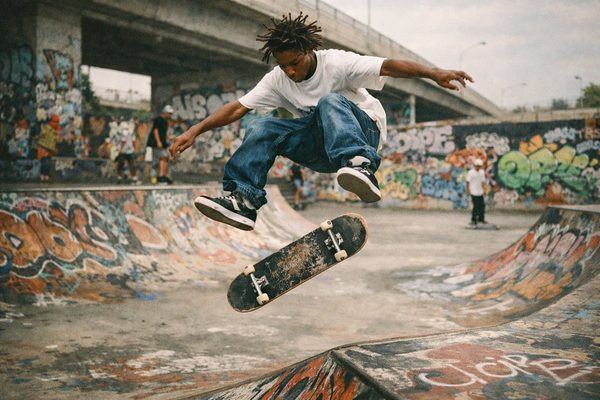
Half the size, same sharp subject
The original 1200px photo on top; resized to 600px below with high-quality smoothing — proportions preserved by the aspect-ratio lock.
Free & unlimited
Resize as many images as you like.
100% private
Processed on your device — never uploaded.
Aspect-ratio lock
No accidental distortion.
High-quality smoothing
Clean downscale, crisp output.
Free Online Image Resizer
This free image resizer changes photo dimensions to exact pixel sizes while keeping proportions locked: type a width and the height follows automatically, or pick a preset for common targets — 1920×1080 desktop, 1080×1080 square, 800×600 classic. High-quality smoothing keeps downscaled results clean instead of crunchy.
It is the everyday fix for platform dimension limits — app uploads, form fields, avatar slots — and for shrinking oversized camera exports to sensible web sizes. Everything runs locally in your browser: the resize is computed on your device, the output downloads as a lossless PNG, and the original file is never modified or transmitted. Crop to remove edges first if you also need the composition tightened.
How to Resize an Image in 3 Steps
STEP 1
Add your image
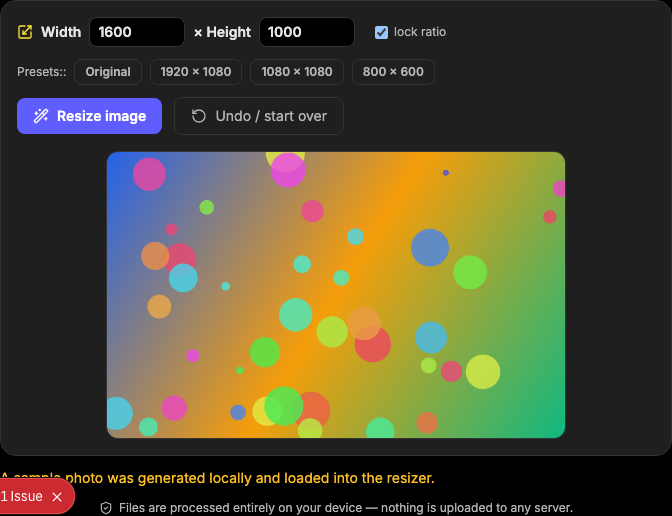
Drag and drop a JPG, PNG or WebP file onto the tool above, or click to browse. The original dimensions load automatically as your starting point.
STEP 2
Set the target size
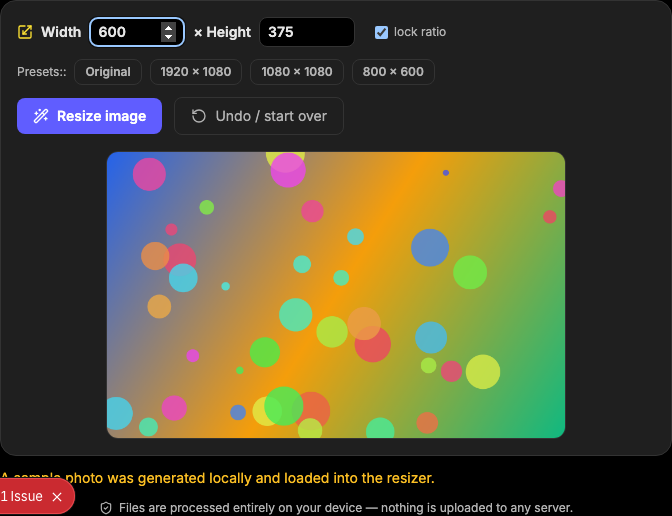
Type exact pixels or pick a preset — with the aspect lock on, changing one side keeps the other proportional so nothing stretches. Toggle the lock off only for deliberate distortion.
STEP 3
Resize and download
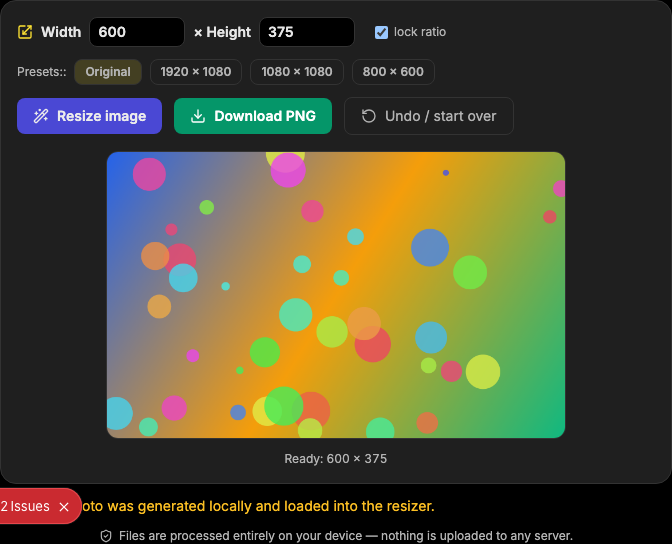
Press “Resize image” and the high-quality resample runs locally — download the result as a clean PNG and check the final dimensions in the status line.
Why Use ImageLark to Resize Images
Free with no limits
Resize one screenshot or a whole batch, image by image — no credits, no account, no watermark. A browser tool, not a trial.
Aspect lock prevents distortion
The ratio lock keeps width and height proportional by default — the number-one cause of stretched, squashed photos simply cannot happen while it is on.
High-quality resampling
Downscales use high-quality smoothing tuned for photos — clean edges and readable text instead of the crunch you get from naive scaling.
Local, instant, private
Everything runs in your browser tab — photos never leave your device, results are instant, and the tool works offline once loaded.
Resize vs Crop vs Compress: Three Different Goals
Resizing changes the dimensions of the whole image: every pixel is resampled to the new width and height, and the full composition stays in frame. Cropping discards pixels outside your selection and keeps the survivors at original sharpness. Compression shrinks the file size while keeping dimensions — the trade is fidelity for weight.
Resize when a platform demands exact dimensions — app upload fields, avatar slots, print specifications — or when oversized camera exports need sensible web sizes. Crop with the crop-image tool when the composition needs tightening: remove edges, center the subject, hit an aspect ratio without stretching anything. Compress when dimensions are already right but the file is too heavy for email.
The efficient order for a typical web-ready image: crop the composition first while you still have all pixels to choose from, then resize to the target dimensions, then compress the file last. Sharpen lightly after a strong downscale to restore snap. Each step has its own tool on this site — combine them in any order your image needs.
Same family: the crop tool tightens composition, the HEIC to JPG converter makes iPhone photos usable, and the pixelate tool handles censoring.
Use Cases: Who Resizes Images
App & form uploads
Hit exact pixel requirements for profile photos, application forms and avatars — aspect lock keeps faces from stretching while you type the numbers.
Web performance
Downscale oversized camera exports to sensible web dimensions — often the single biggest page-weight win, before any compression even starts.
Print & presentations
Match exact print dimensions at target DPI and slide-deck image slots — high-quality smoothing keeps text and edges readable after the scale.
Frequently Asked Questions
How do I resize an image without losing quality?
Downscaling with high-quality smoothing is effectively lossless to the eye — this tool uses exactly that for smaller targets. Enlarging is the harder direction: pixels must be invented, so big upscales soften. For large enlargements, an AI upscaler invents real detail instead.
How do I keep the aspect ratio when resizing?
The lock is on by default: change the width and the height follows automatically (and vice versa) using the original ratio. Turn it off only when you deliberately want a different proportion — otherwise photos stretch or squash.
What dimensions should I use for social media?
Common targets: 1080×1080 for square posts, 1080×1350 for Instagram portrait, 1920×1080 for YouTube thumbnails and Twitter cards. The presets cover these; the aspect lock keeps your photo undistorted while you dial them in.
Why is my resized PNG bigger than expected?
PNG is lossless, so photographic content stays heavy — resizing changes pixel count, not compression style. For lighter files at the same dimensions, run the resized image through the compressor, or export to JPG for photos.
Can I resize multiple images at once?
This tool resizes one image at a time for a precise preview of every result. For batches, repeat per image — it takes seconds each — or keep an eye out for batch support in upcoming updates.
Is the image resizer free to use?
Completely free with no signup, no watermark and no daily limit. Resizing runs locally in your browser — photos are never uploaded, and the tool works offline once loaded.
أدوات الصور بالذكاء الاصطناعي ذات الصلة
Ready to Resize Your Image?
Drop it above, set the dimensions and download in seconds — free, private, watermark-free.