
HEIC to JPG Converter
Drop your iPhone HEIC photos and get share-friendly JPGs instantly — decoded right in your browser, nothing uploaded. Free, no signup, no watermarks.
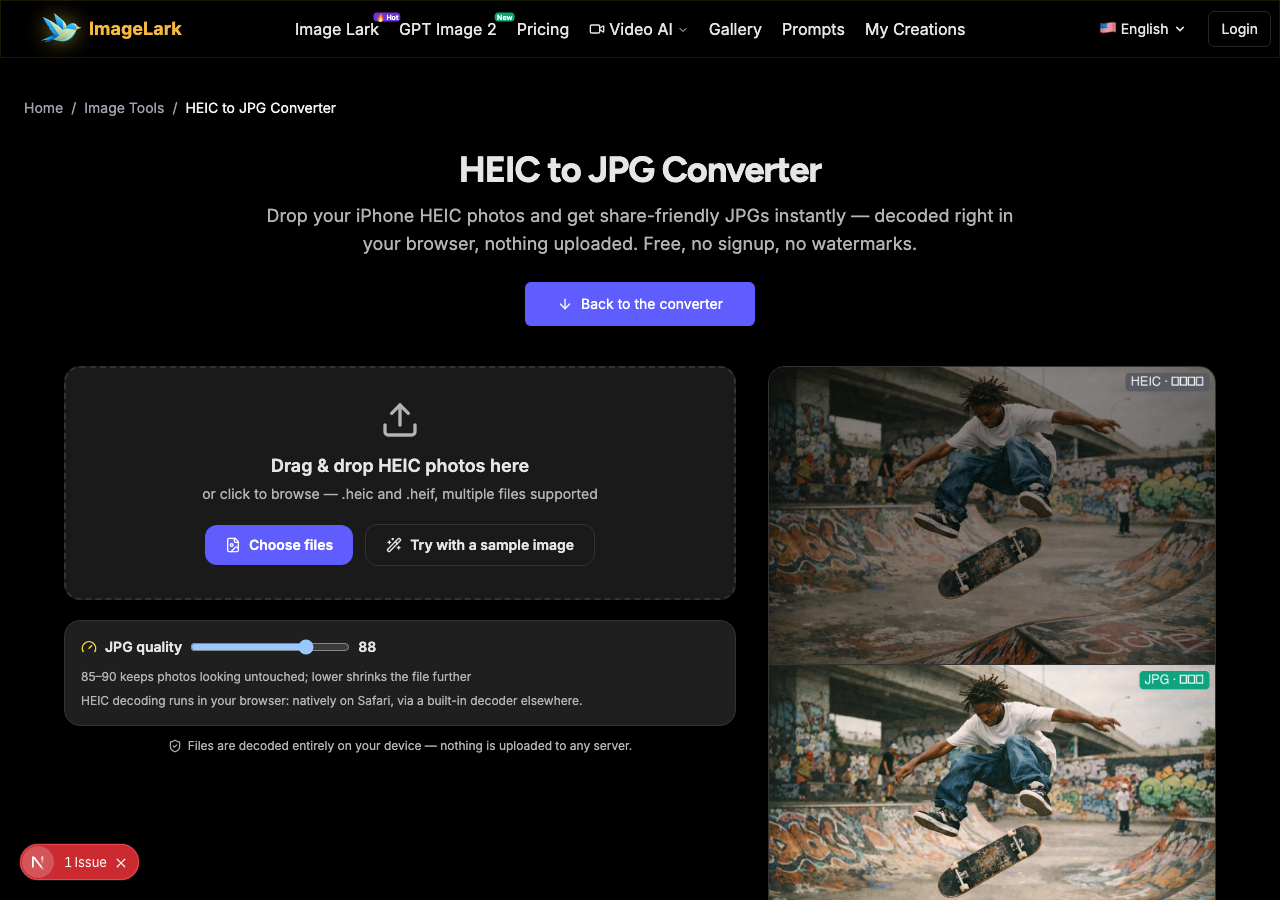
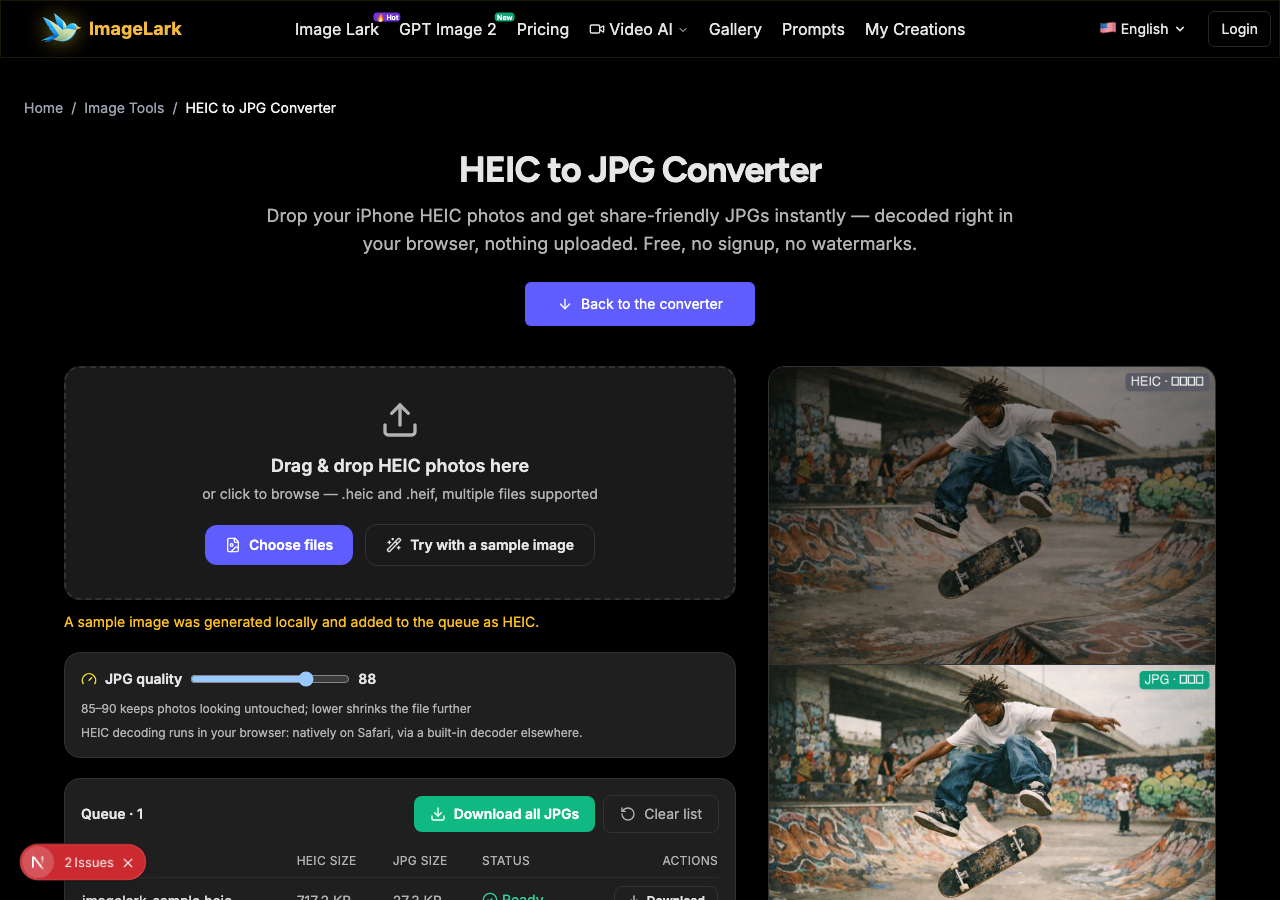
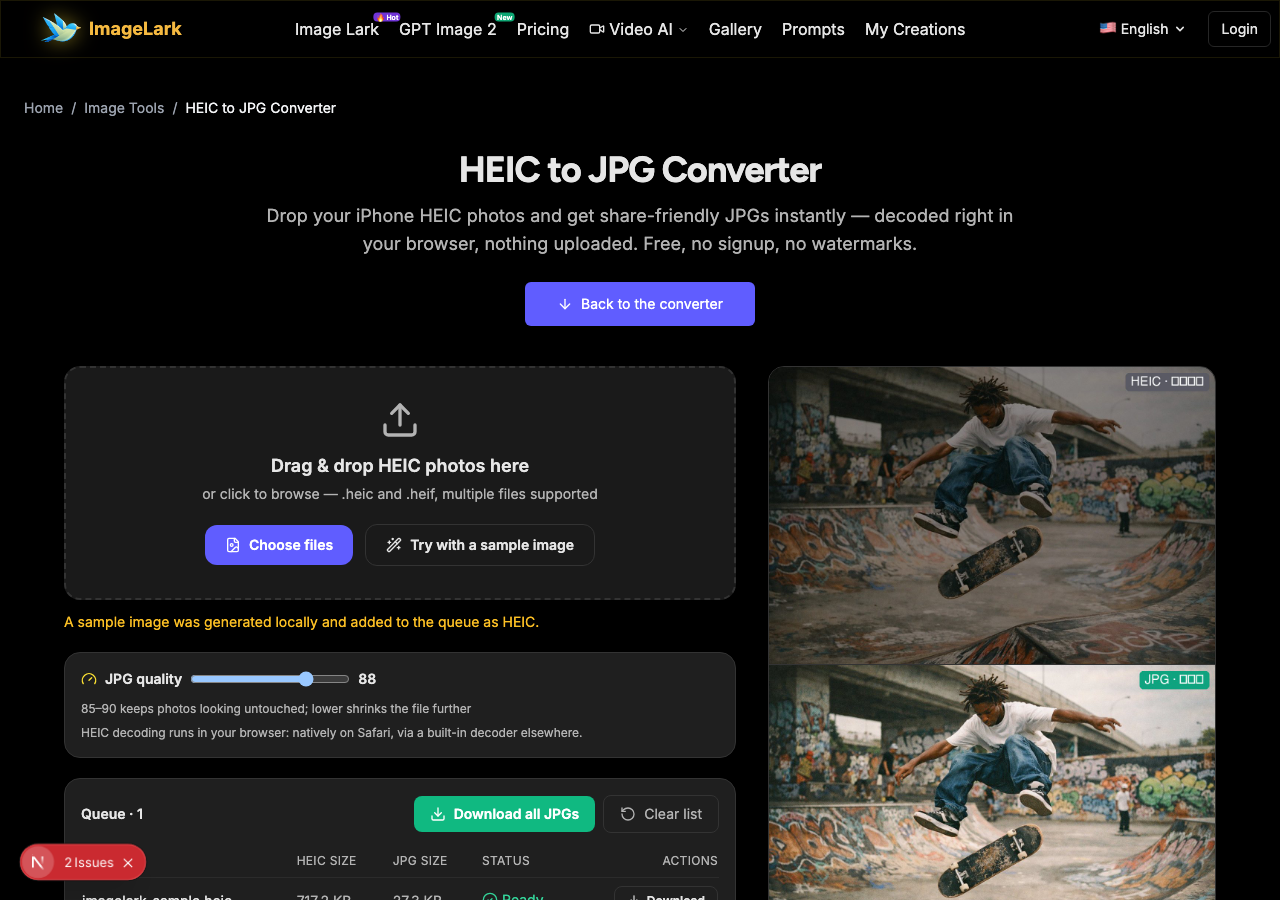
Drag & drop HEIC photos here
or click to browse — .heic and .heif, multiple files supported
HEIC decoding runs in your browser: natively on Safari, via a built-in decoder elsewhere.
Files are decoded entirely on your device — nothing is uploaded to any server.


The iPhone photo problem, solved
Top: the HEIC photo as other devices see it — locked. Bottom: the same frame as JPG — opens everywhere, ready to share.
Free & unlimited
No credits, no account, no daily cap.
100% private
Decoded on your device — never uploaded.
Batch ready
Convert a whole camera roll at once.
Quality slider
Pick your own size/fidelity trade.
Free Online HEIC to JPG Converter
This free online converter turns iPhone HEIC photos into JPGs that open everywhere. HEIC is the format iPhones save by default — great for storage, terrible for compatibility: Windows photo viewers, many websites, email clients and older Android phones simply cannot open it. Drop the files here and the decoder (native on Safari, a built-in engine elsewhere) re-encodes them as universally readable JPGs.
The whole conversion runs inside your browser tab: your camera roll never touches a server, so private photos stay private and there is no upload wait even for large batches. A quality slider controls the output, EXIF orientation is honored so photos come out upright, and the batch queue converts an entire album in one pass — the fastest fix for the "my iPhone photos won't open" message.
How to Convert HEIC to JPG in 3 Steps
STEP 1
Add your HEIC files
Drag and drop .heic or .heif files onto the tool above, or click to browse. Batch supported — a whole album works as well as one photo. You can also try the sample first.
STEP 2
Pick the JPG quality
Use the quality slider: 85–90 keeps photos looking untouched, lower values shrink files further for email. One setting applies to the entire batch.
STEP 3
Convert and download
Press “Convert all to JPG”. Each row flips from HEIC size to JPG size as it finishes — download files individually or the whole batch at once.
Why Use ImageLark to Convert HEIC to JPG
Free with no file caps
Convert one stubborn photo or a whole vacation album — no credits, no account, no watermark. A browser tool, not a trial.
Your camera roll stays on your device
Decoding happens in your browser — HEIC files are never uploaded anywhere. Private photos, IDs and family albums stay on your machine, and conversion is instant with no server round-trip.
EXIF orientation honored
Photos come out upright: the orientation flag iPhone cameras embed is respected during decode, so no sideways surprises after conversion.
Quality you control
The slider decides the size/fidelity trade — 90 for prints and masters, 85 for sharing, 75 for tight email limits. Every row shows the resulting file size.
HEIC vs JPG: Which Format When?
HEIC is Apple's modern image format: it stores photos at roughly half the size of an equivalent JPEG with better highlight handling and multi-image (Live Photo) support. JPG is the 30-year universal standard: every device, browser, website and app released in the last three decades opens it without question.
Keep HEIC when the photos live in the Apple ecosystem — iCloud, iPhone, Mac — where storage savings are real and support is native. Convert to JPG the moment a photo needs to leave that world: Windows PCs without codecs, web forms, online print shops, Android recipients, email attachments and messaging apps that choke on it.
Compatibility is the deciding factor, not quality: at the same visual fidelity a JPG is bigger but opens everywhere, and a HEIC that nobody can open has zero value regardless of how well it is compressed. Practical setup — keep shooting HEIC for storage, and convert batches to JPG when sharing outside Apple devices. If your photos are WebP instead, the WebP to PNG converter handles that; and PNGs too heavy for email can go through the PNG to JPG converter.
The format family: the universal image converter handles any direction in one queue, while the PNG to JPG converter and JPG to PNG converter cover the classic pairs.
Use Cases: Who Converts HEIC to JPG
Sharing outside Apple
Send iPhone photos to Windows family PCs, Android friends and work chats without the "cannot open file" reply — one batch conversion covers the whole album.
Forms & uploads
School portals, government forms, print shops and marketplaces frequently reject .heic uploads. Convert to JPG and submit on the first try.
Storage cleanup
Archive converted JPG copies of the shots worth keeping, then delete the HEIC originals — same photos, universally readable, less device storage spent on duplicates.
Frequently Asked Questions
How do I convert HEIC to JPG for free?
Drop your HEIC files on this page, pick a quality level and press convert — the JPGs download instantly. Completely free with no signup, no watermark and no file limit, and the conversion runs entirely in your browser.
Why can't I open HEIC files on my PC?
HEIC is Apple's format and Windows only opens it with a paid codec extension (HEIF Image Extensions) or newer photo apps. Converting to JPG sidesteps the problem entirely — JPG opens on every device and website without extra software.
Does converting HEIC to JPG reduce quality?
JPG is lossy, but at quality 85–90 the difference from the HEIC original is visually undetectable on screens and in standard prints. Lower values shrink files further with progressively more compression artifacts — the slider makes the trade-off visible in the file sizes.
How do I stop my iPhone from taking HEIC photos?
On iPhone: Settings → Camera → Formats → choose "Most Compatible" and new photos save as JPG directly. For the thousands of HEIC photos already taken, this converter turns them into JPGs in one batch — the fastest cleanup for mixed-device households.
Can I convert multiple HEIC files at once?
Yes — drag the whole selection into the queue, set quality once, press convert and download the batch together. Each row shows the HEIC and JPG sizes so you can confirm the results before saving.
Are my HEIC photos uploaded anywhere?
No. Decoding runs inside your browser (natively on Safari; via a built-in engine on other browsers). Your camera roll never leaves your device, which is exactly what you want from a tool handling personal photos.
Related AI Image Tools
Ready to Convert Your HEIC Photos?
Drop them above and download shareable JPGs in seconds — free, private, watermark-free.