
Free Online Image Converter
Convert images between JPG, PNG, WebP and more — with a quality slider and batch queue, right in your browser. Free, no signup, nothing uploaded.
Drag & drop images here
or click to browse — JPG, PNG, WebP, HEIC and more, multiple files supported
Files are processed entirely on your device — nothing is uploaded to any server.


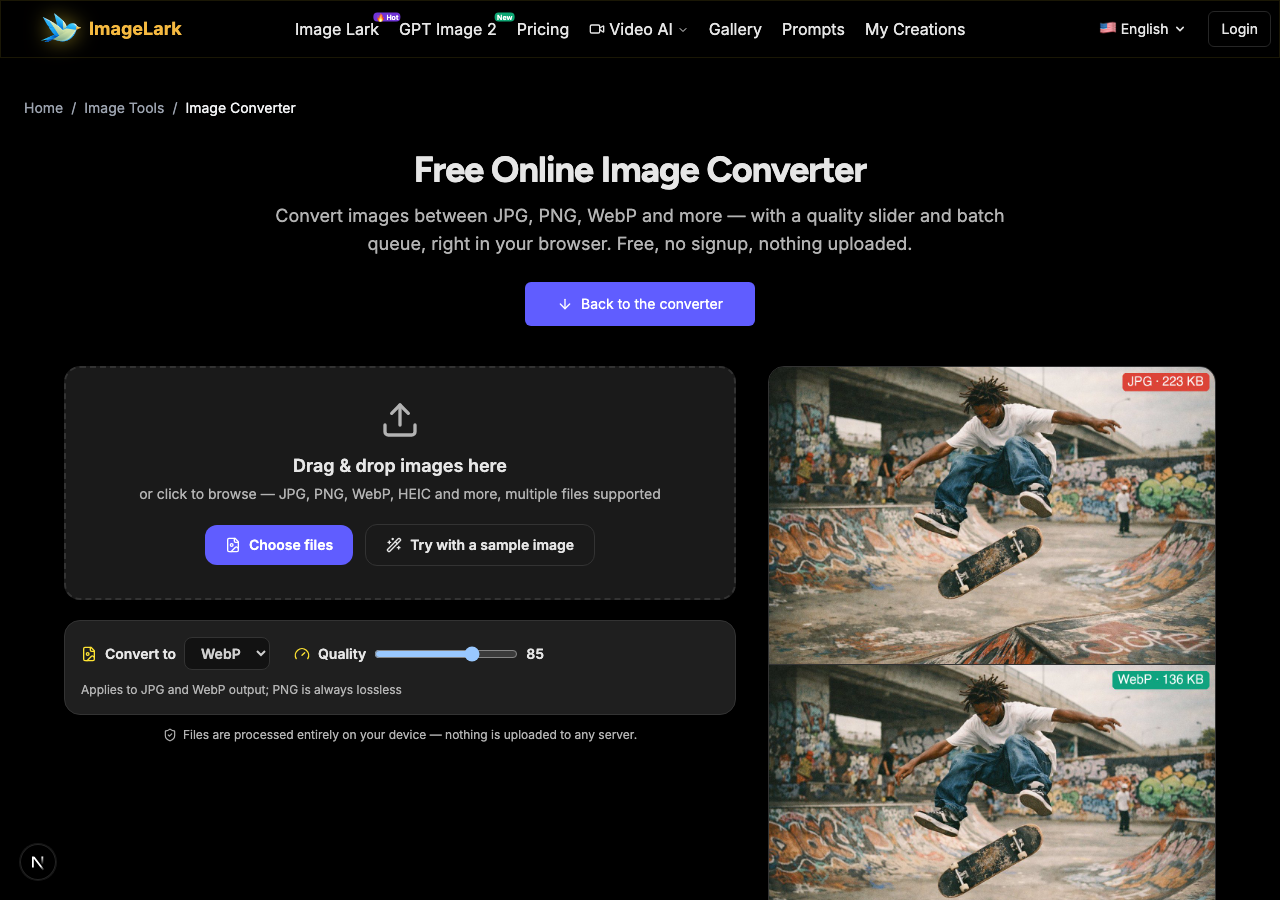
Same photo, 40% lighter
The identical frame exported as JPG (223 KB) and WebP (136 KB) at matching visual quality — the format you pick changes how heavy every page and upload is.
Free & unlimited
No credits, no account, no daily cap.
100% private
Converted on your device — never uploaded.
Quality slider
Control size vs fidelity yourself.
Batch ready
Queue a whole folder and convert once.
Free Online Image Format Converter
This free online image converter changes photos between JPG, PNG, WebP and more — with a quality slider for lossy formats and a batch queue for whole folders. The conversion runs entirely inside your browser tab: images are decoded, re-encoded in the format you pick and handed back as downloads, never touching a server. No upload wait, no file size quota, no account.
Every platform and workflow has its own format expectations: marketplaces want JPG, design tools want lossless PNG, modern websites want WebP, iPhones shoot HEIC. Instead of installing a converter app for each rule, drop your files here, pick the target format once, and download the whole batch. The dedicated single-purpose converters (WebP to PNG, PNG to JPG, JPG to PNG, HEIC to JPG) stay one click away in the format family below.
How to Convert Image Formats in 3 Steps
STEP 1
Add your images
Drag and drop one or more images onto the tool above — JPG, PNG, WebP and (on supporting browsers) HEIC all work. You can also press “Try with a sample image” to see the flow.
STEP 2
Pick the target format
Choose PNG, JPG or WebP from the format selector. For JPG and WebP a quality slider appears — 85 is the everyday sweet spot, 90+ for masters. One setting covers the whole batch.
STEP 3
Convert and download
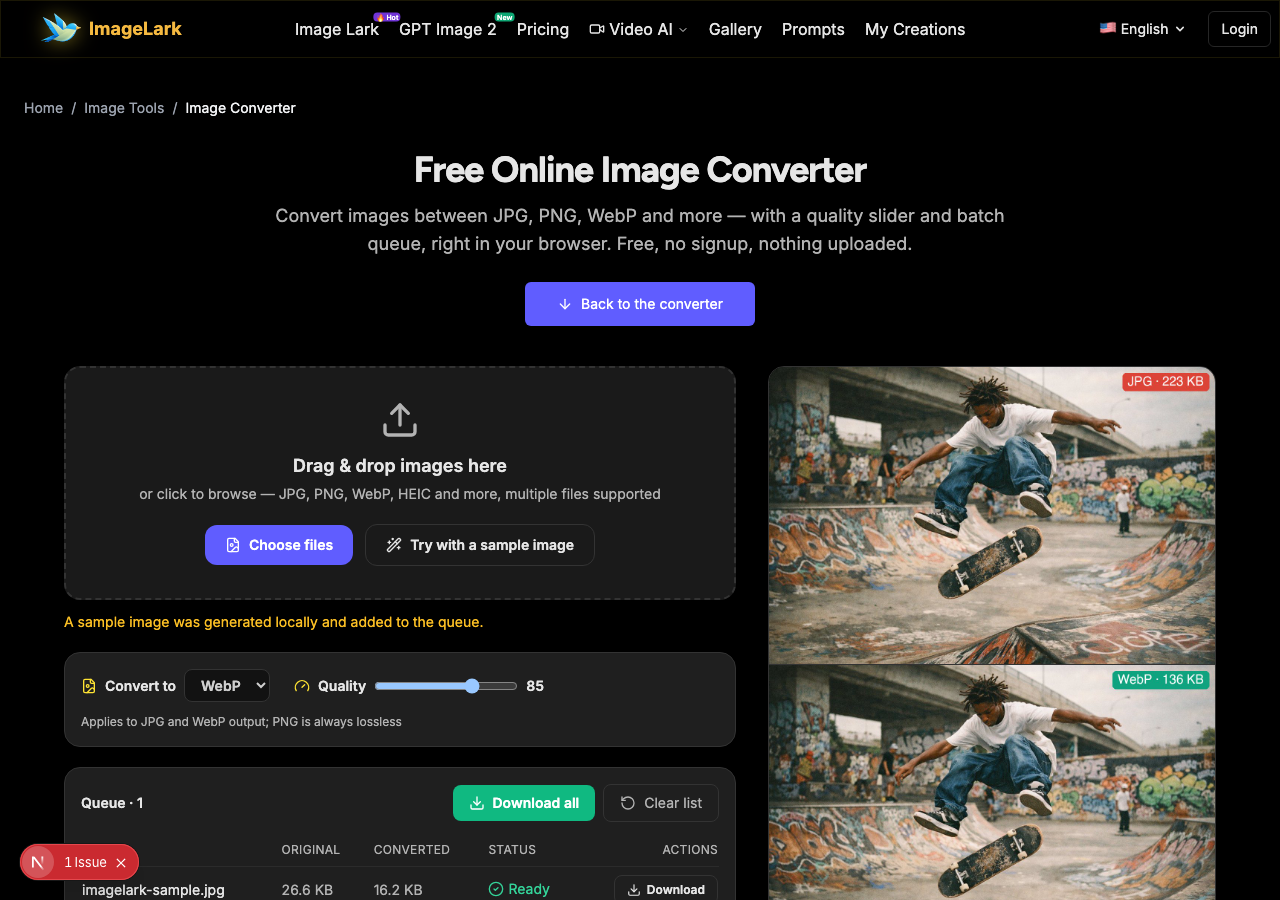
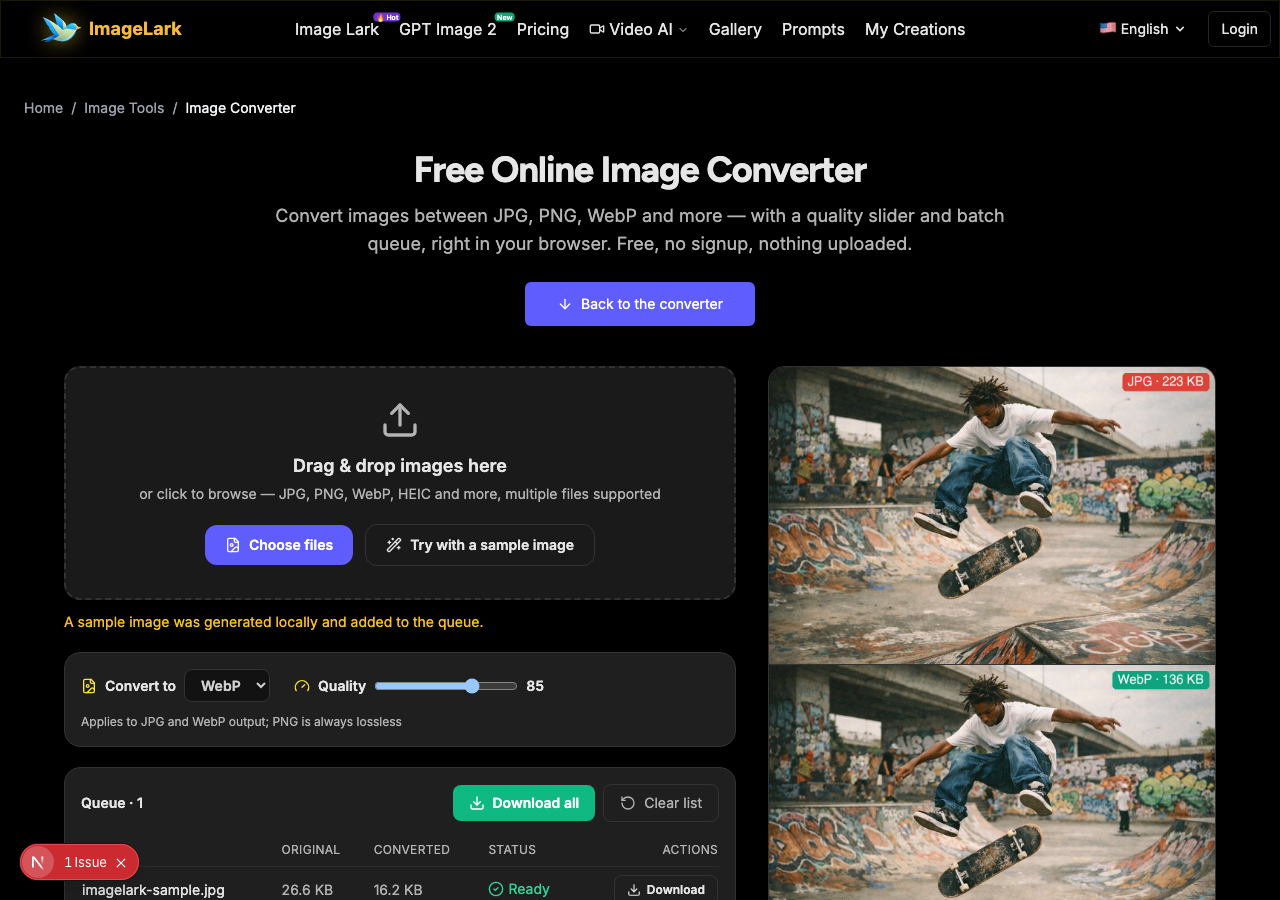
Press “Convert all”. Every row shows the original and converted sizes, then download files one by one or the entire batch. Transparency-aware: PNG stays PNG-sharp, JPG gets a clean white fill.
Why Use ImageLark to Convert Images
Free with no conversion caps
Convert ten files or a thousand — no credits, no account, no watermark. A browser utility, not a trial with a paywall at step three.
Local conversion, total privacy
Images are decoded and re-encoded inside your browser tab. Nothing is uploaded, stored or logged — confidential documents and client work never leave your machine.
One tool, every direction
JPG, PNG and WebP in any combination from a single queue — no hunting for a different site each time a rule changes. Transparency is handled correctly per format.
Sizes you can verify
Each queue row lists before-and-after file sizes, so the quality slider becomes a real decision: see exactly what each setting costs and saves before you download.
JPG vs PNG vs WebP: Which Format When?
The three everyday formats optimize for different content. JPG is the photo workhorse: lossy compression tuned for photographs, tiny files, no transparency. PNG is the lossless workhorse: pixel-perfect text, sharp edges and alpha transparency, at the cost of large photo files. WebP is the modern all-rounder: photos as small as (often smaller than) JPG, plus lossless mode and transparency — supported by every current browser.
Practical defaults: photographs heading to the web → JPG at quality 85, or WebP if your platform accepts it. Screenshots, logos and anything with text or transparency → PNG. iPhone photos that will not open anywhere → HEIC to JPG first (this site has a dedicated tool for exactly that). Mixing them: convert masters to PNG once, then export distribution copies per destination.
A quick reality check on sizes: a 1200px photo typically lands near 200 KB as JPG q85, under 100 KB as WebP q80, and several hundred KB as PNG. The savings compound across a whole site. And when one format refuses to open at all — the iPhone HEIC case — conversion is not an optimization, it is the only way the file becomes usable.HEIC to JPG converter
Dedicated one-click converters: the WebP to PNG converter, PNG to JPG converter, JPG to PNG converter and HEIC to JPG converter — or this page for any direction in one queue.
Use Cases: Who Converts Image Formats
Web & app teams
Ship lighter pages: convert photo assets to WebP for the site, keep PNG masters in the repo — the batch queue handles a whole asset folder in one pass.
Marketplace sellers
Every platform has its own format rules. Convert supplier photos to the exact format and size limits each marketplace demands — locally, so supplier pricing stays private.
Everyday phone cleanup
iPhone HEIC photos nobody else can open, screenshot PNGs too heavy to email — a single browser tab converts them all without installing anything.
Frequently Asked Questions
Which image formats can I convert between?
The converter handles JPG, PNG, WebP and more as input, and exports to PNG (lossless, transparency-safe), JPG (lossy, quality slider) or WebP (lossy or lossless, quality slider). Output format is your choice per batch; input format is detected automatically.
Does converting images reduce quality?
PNG output is lossless — zero quality change. JPG and WebP output are lossy, but at quality 85+ the difference is visually undetectable for photographs. The quality slider lets you choose the exact trade-off, and each row shows the resulting file size before you download.
How do I convert iPhone HEIC photos to JPG?
Use the dedicated HEIC to JPG converter on this site — it decodes HEIC in your browser (via a built-in decoder on Chrome and Edge, native support on Safari) and outputs shareable JPGs. It is the fastest fix for iPhone photos that will not open on a friend's PC.
Can I convert images in bulk?
Yes — drag a whole selection into the queue, pick one target format and quality, press convert once and download everything together. Each file is listed with its before-and-after size.
Are my images uploaded when converting?
No. The conversion runs in your browser with the Canvas API. Your files never reach ImageLark or any server, which also makes conversion instant and available offline once the page is loaded.
Is the image converter free to use?
Completely free with no signup, no watermark and no conversion limit. It works on desktop and mobile browsers alike, and your files stay on your device throughout.
Related AI Image Tools
Ready to Convert Your Images?
Drop them above, pick a format and download in seconds — free, private, watermark-free.