
Image Splitter – Cut Photos into Pieces
Drop an image, choose your grid and download every piece instantly — split right in your browser. Free, no signup, nothing uploaded.
Drag & drop an image here
or click to browse — JPG, PNG, WebP and more
Files are processed entirely on your device — nothing is uploaded to any server.
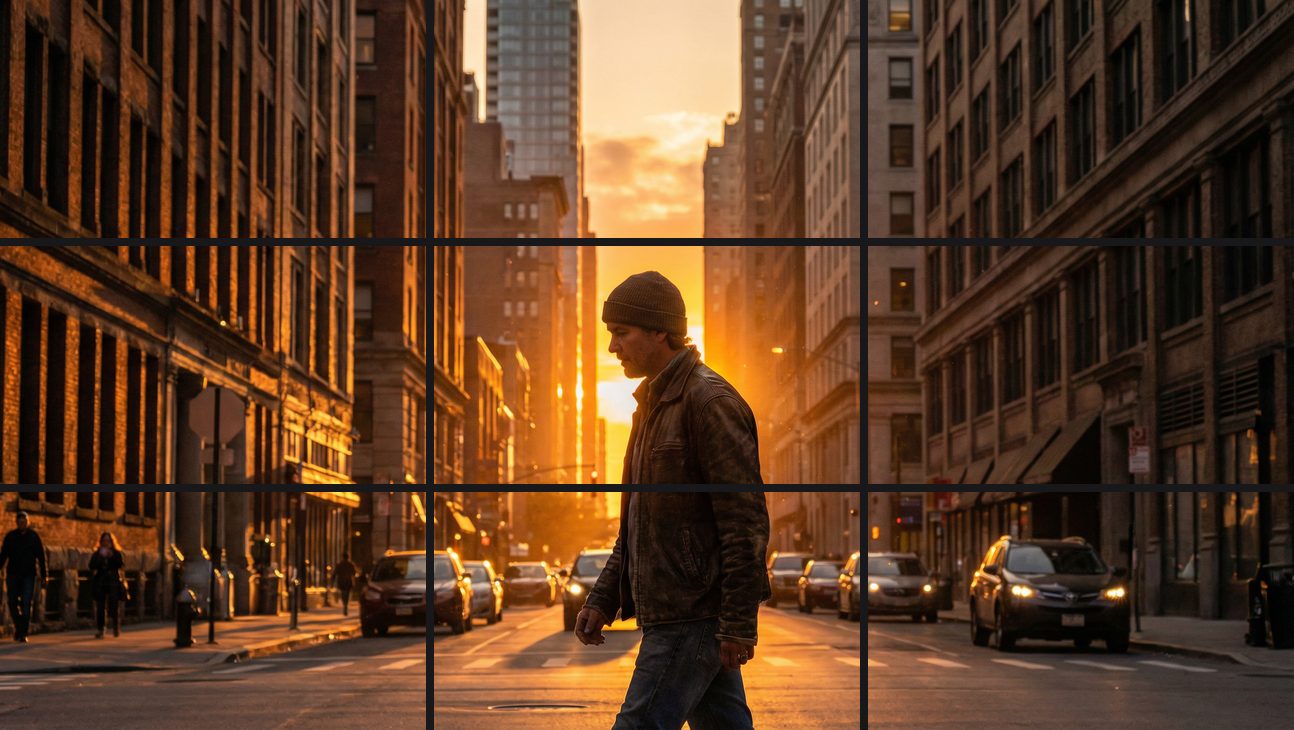
The classic 3×3 grid
This city-street photo split into a 3×3 grid — nine perfectly aligned tiles, ready to post row by row. Your rows and columns, your rules.
Free & unlimited
Split as many images as you like — no account.
100% private
Split on your device — never uploaded.
Pixel-exact tiles
No resampling — every tile stays sharp.
Instant batch download
Grab all pieces in one click.
Free Online Image Splitter
This free online image splitter cuts any photo into a grid of pieces you can download individually or all at once. Pick your rows and columns — 2×2, 3×3 for the classic social grid, or up to 6×6 — and the tool slices the image along exact pixel boundaries with no resampling, so every tile is as sharp as the original.
Everything runs inside your browser tab: the image is divided locally and never touches a server, so there is no upload wait, no file limit and no privacy trade-off. It is built for the jobs that come up every week — using the image splitter to chop a panorama into a swipeable carousel, split images of long screenshots into digestible chunks, or slice a large print into tiles your printer can handle page by page.
How to Split an Image in 3 Steps
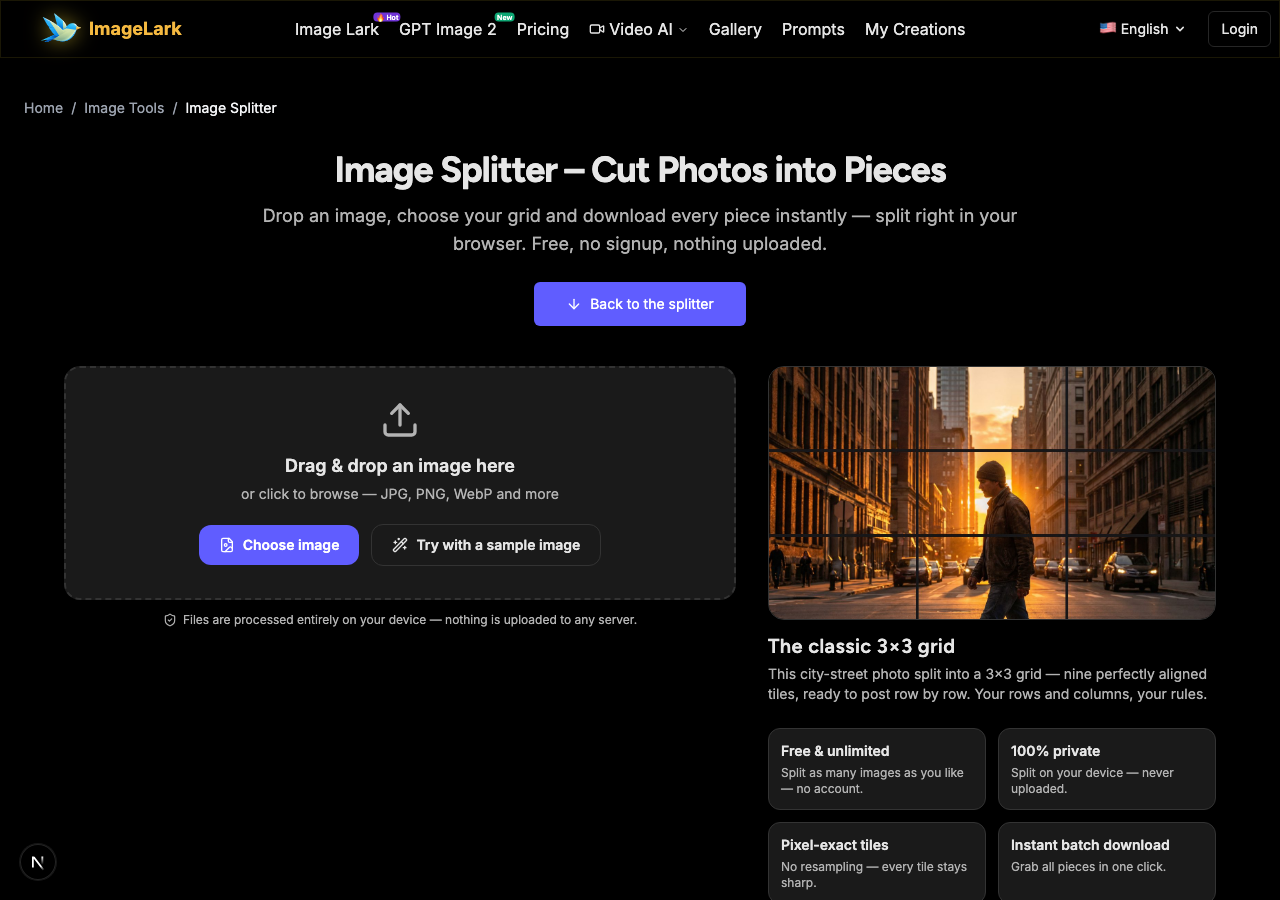
STEP 1
Add your image
Drag and drop a JPG, PNG or WebP file onto the tool above, or click to browse. One image at a time keeps the preview honest — you can also press “Try with a sample image”.
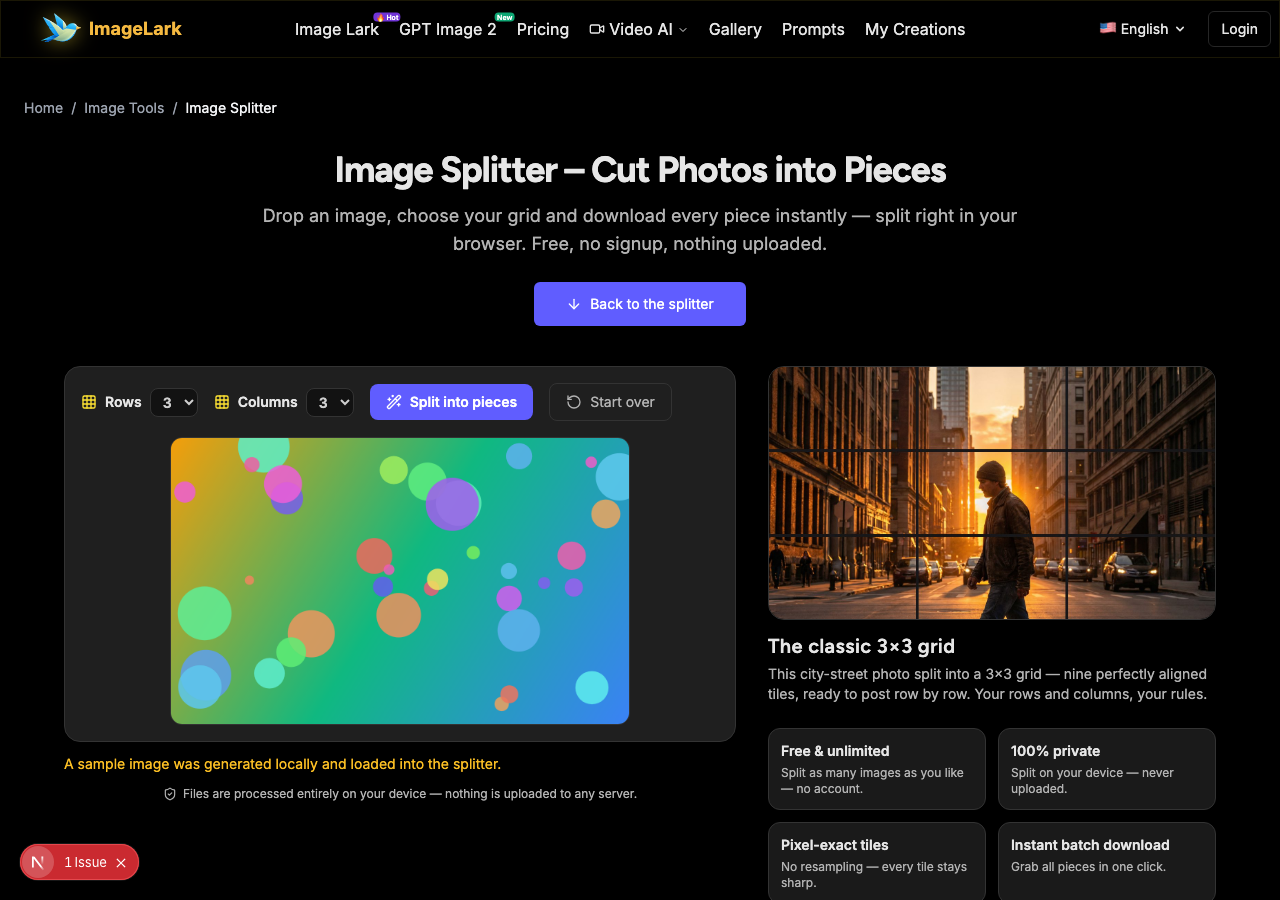
STEP 2
Choose rows and columns
Set how many rows and columns you want — 3×3 is the classic social grid, 2×2 suits simple pairs, 5×1 slices a long screenshot into strips. Press “Split into pieces” and the grid preview shows exactly where every cut lands.
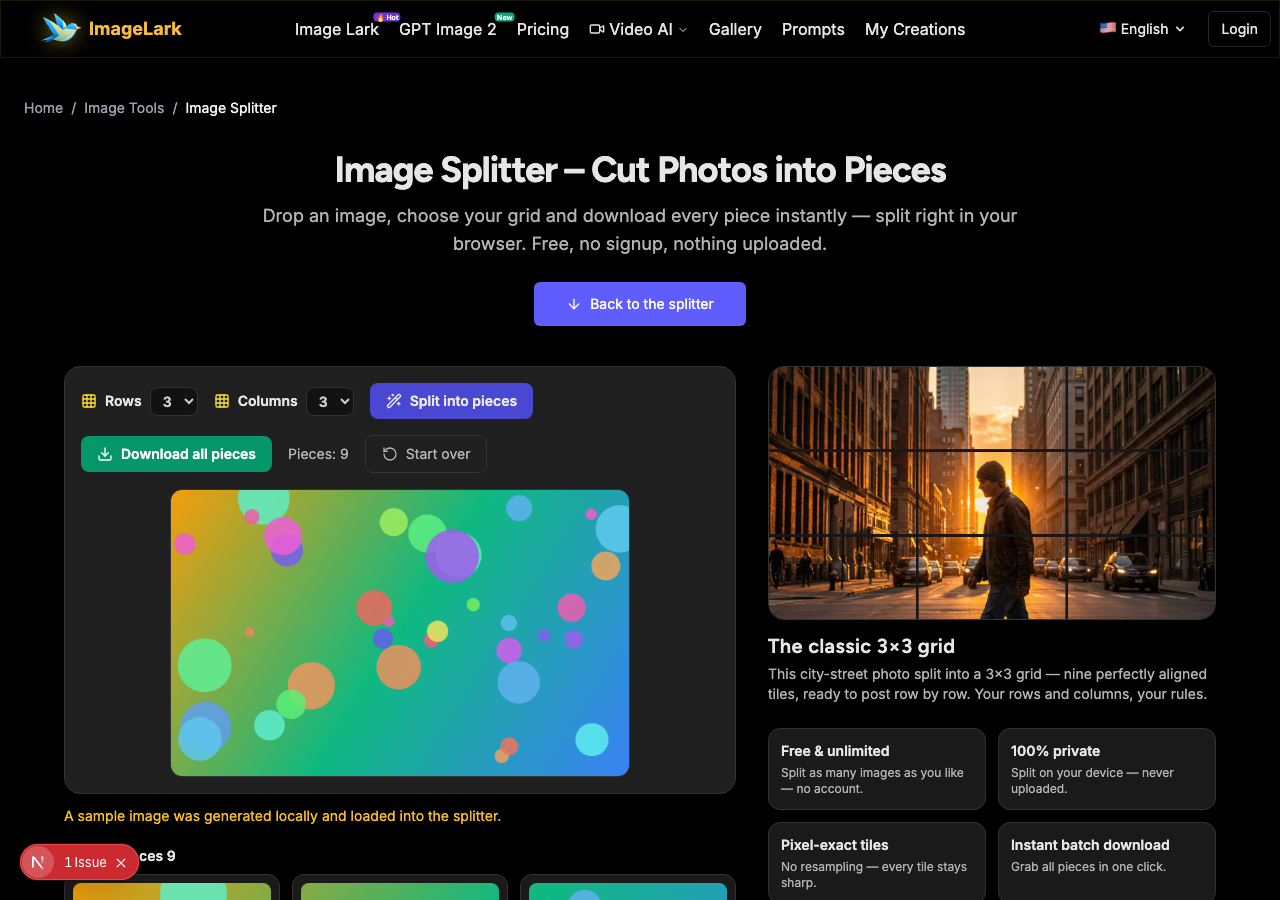
STEP 3
Download the pieces
Save tiles one by one or grab the whole set with “Download all pieces”. Files are numbered row by row (tile-1-1, tile-1-2, …) so they reassemble in the right order.
Why Use ImageLark to Split Images
Free with no limits
Split one photo or fifty — no credits, no account, no watermark on any tile. It is a browser tool, not a trial.
Pixel-exact cutting
Tiles are cut along hard pixel boundaries with zero resampling or compression cleverness — each piece is a lossless PNG crop of the original, edge to edge.
Your images stay on your device
Splitting happens inside your browser tab. Nothing is uploaded or stored anywhere — safe for confidential screenshots and personal photos. The image splitter is instant because there is no server round-trip, and the grid preview shows the actual cut lines over your image before you commit.
Grid preview before you commit
The preview shows the actual cut lines over your image, so you can nudge rows and columns until the composition splits exactly where you want — no guesswork, no re-uploads.
Split vs Crop: Which One Do You Need?
Splitting and cropping both cut an image, but they answer different problems. Splitting is one-becomes-many: the full image is divided into several complete tiles along grid lines, and nothing is thrown away — every piece keeps its slice of the original. Cropping is one-becomes-smaller: you select one region, keep it, and discard the rest.
Use a splitter when you need the whole image but delivered in pieces: social grids posted row by row, long screenshots chunked for chat or docs, panoramas turned into carousels, or large prints tiled across multiple sheets. Use a crop when you only want part of the picture — trimming edges, isolating a subject, or fitting an exact aspect ratio. Splitting a photo you actually wanted to trim just gives you nine copies of the background you meant to remove.
They also differ in what comes out. A split always produces pieces that reassemble into the original — think of it as lossless division. A crop produces a new, smaller image that stands on its own. If your real goal is changing an image's dimensions rather than cutting it apart, that is resizing — and if it is shrinking the file size, that is compression.
Related quick fixes: the pixelate tool censors details, the image rotator fixes orientation, and the sharpen tool keeps every tile crisp before you post it.
Use Cases: Who Splits Images
Social media grids
Split one wide photo or panorama into a 3×3 grid and post it row by row for the classic profile-page mosaic that makes visitors stop scrolling.
Long screenshots
Slice a full-page capture into equal chunks that actually fit in chat windows, tickets and docs — numbered automatically so recipients can reassemble the story.
Print tiling
Cut a large poster or banner into printable tiles with exact pixel boundaries, then tape or mount the sheets together seamlessly.
Frequently Asked Questions
How do I split an image into multiple parts?
Drop your image on this page, choose rows and columns (for example 3×3), press “Split into pieces” and download the tiles. Everything runs in your browser — no app to install, and the pieces are numbered so they reassemble in order.
Can I split an image into a 3x3 grid for Instagram?
Yes — that is the most popular preset. Load your photo, set rows and columns to 3, split and download the nine tiles, then post them row by row. The tool keeps every tile's pixels aligned with the original, so the profile-grid mosaic lines up perfectly.
Will splitting reduce image quality?
No. Tiles are cropped along exact pixel boundaries and saved as lossless PNGs — no resampling, no recompression. Each piece is exactly as sharp as that region of the original image.
How do I split a long screenshot into pieces?
Set columns to 1 and rows to however many strips you want (for example 5×1), then split. You get equal-height slices numbered top to bottom — ideal for chat, tickets and documentation.
What formats can I split?
JPG, PNG, WebP and other common image formats all work. Output tiles are always lossless PNG regardless of the input format, so nothing loses quality during the cut.
Is the image splitter free to use?
Completely free with no signup, no watermark and no daily limit. Images are split locally in your browser and never uploaded anywhere — the tool even works offline once the page has loaded.
Verwandte KI-Bildtools
Ready to Split Your Image?
Drop it above, pick a grid and download every piece in seconds — free, private, watermark-free.