
Flip Image & Mirror Photo Online
Flip images horizontally or vertically to mirror photos in one click — the fastest way to flip image orientation online, processed right in your browser. Free, no signup, nothing uploaded.
Drag & drop images here
or click to browse — JPG, PNG, WebP and more
Flip direction
Files are processed entirely on your device — nothing is uploaded to any server.
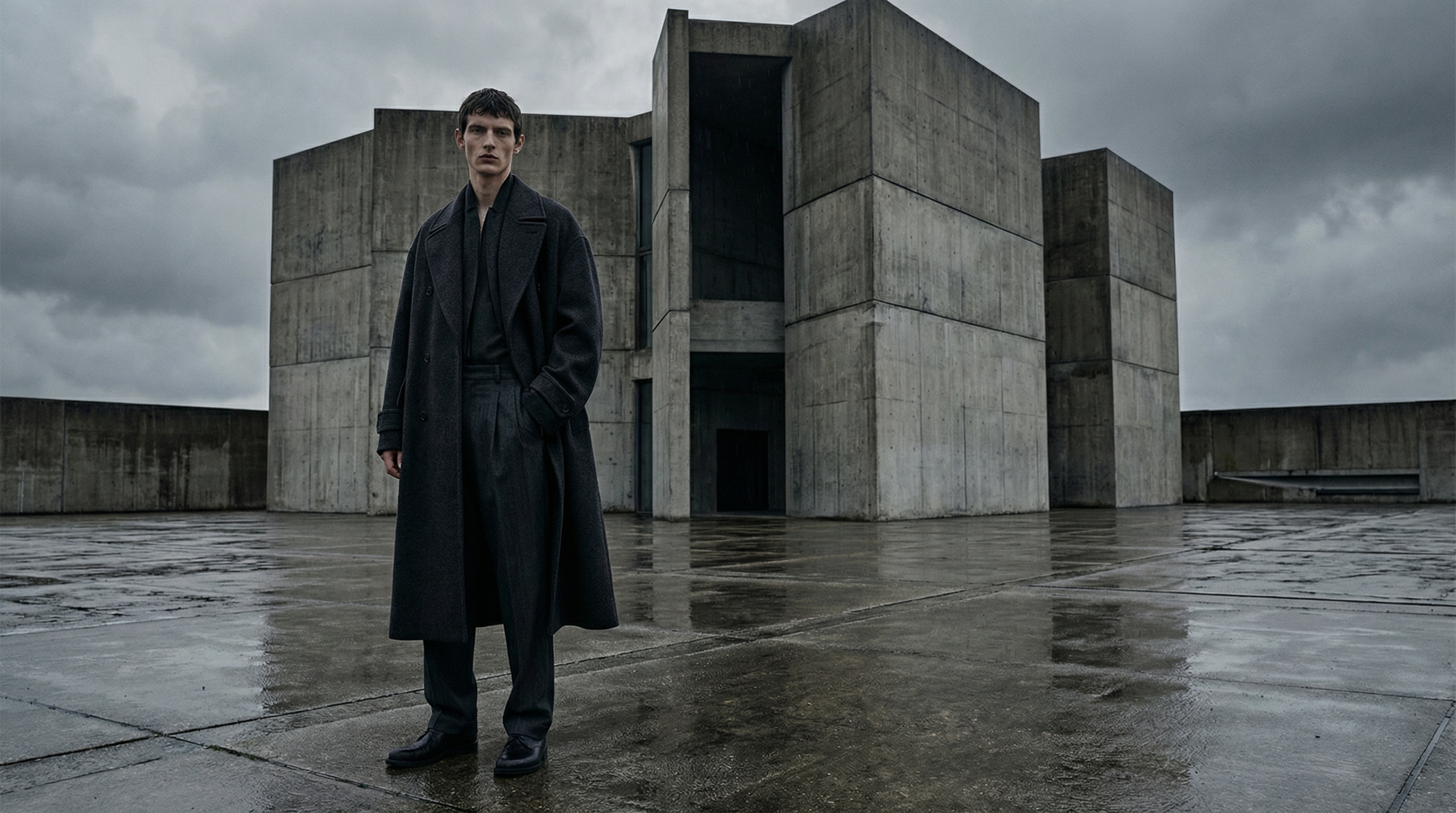
One flip changes the whole composition
This photo places the subject left of center. Flip it horizontally and the visual weight, reading direction and negative space all move to the other side — the same photo, a different feel.
Free & unlimited
No credits, no account, no daily cap.
100% private
Processed on your device — never uploaded.
Pixel-perfect mirror
Lossless flip, no resampling blur.
Batch ready
Queue many files with live previews.
Free Online Image Flipper & Mirroring Tool
This free online tool flips images horizontally or vertically in one click. Horizontal flip mirrors the photo left-to-right — the classic fix for selfies that point the wrong way, text that reads backwards, or compositions whose visual weight sits on the wrong side. Vertical flip turns the image upside-down, handy for reflections, printed transfers and creative layouts.
Everything runs inside your browser tab: your images are flipped locally and never touch a server, so there is no upload wait, no file limit and no privacy trade-off. The flip is pixel-perfect — each row or column of pixels is reversed exactly, with no resampling or softening. Whether you want to mirror photo content for a layout or flip image orientation for a transfer print, the batch queue handles it in one pass, with a live preview of every result before you download.
How to Flip Images Online in 3 Steps
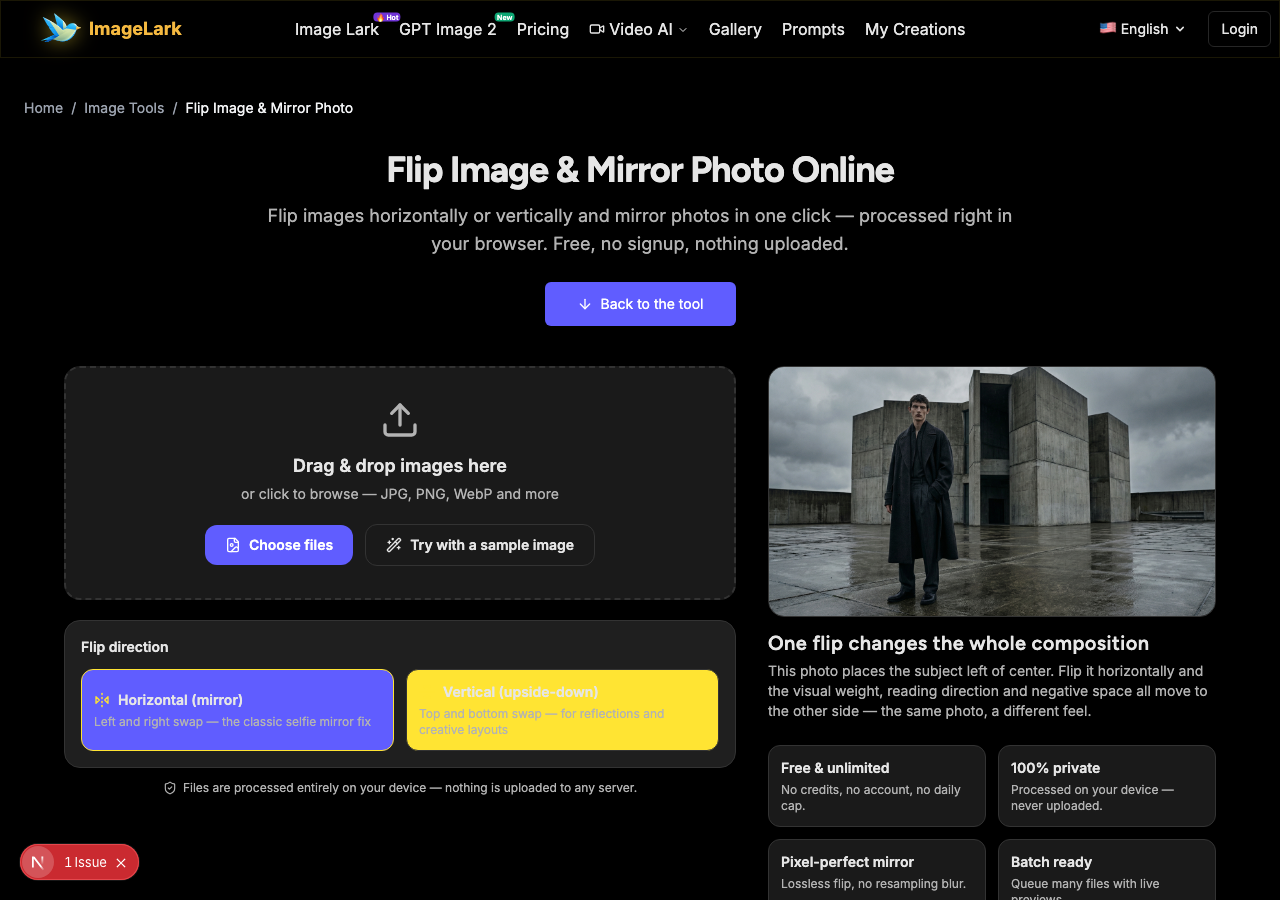
STEP 1
Add your image
Drag and drop a JPG, PNG or WebP file onto the tool above, or click to browse. Queue as many images as you like — or press “Try with a sample image” to try it instantly.
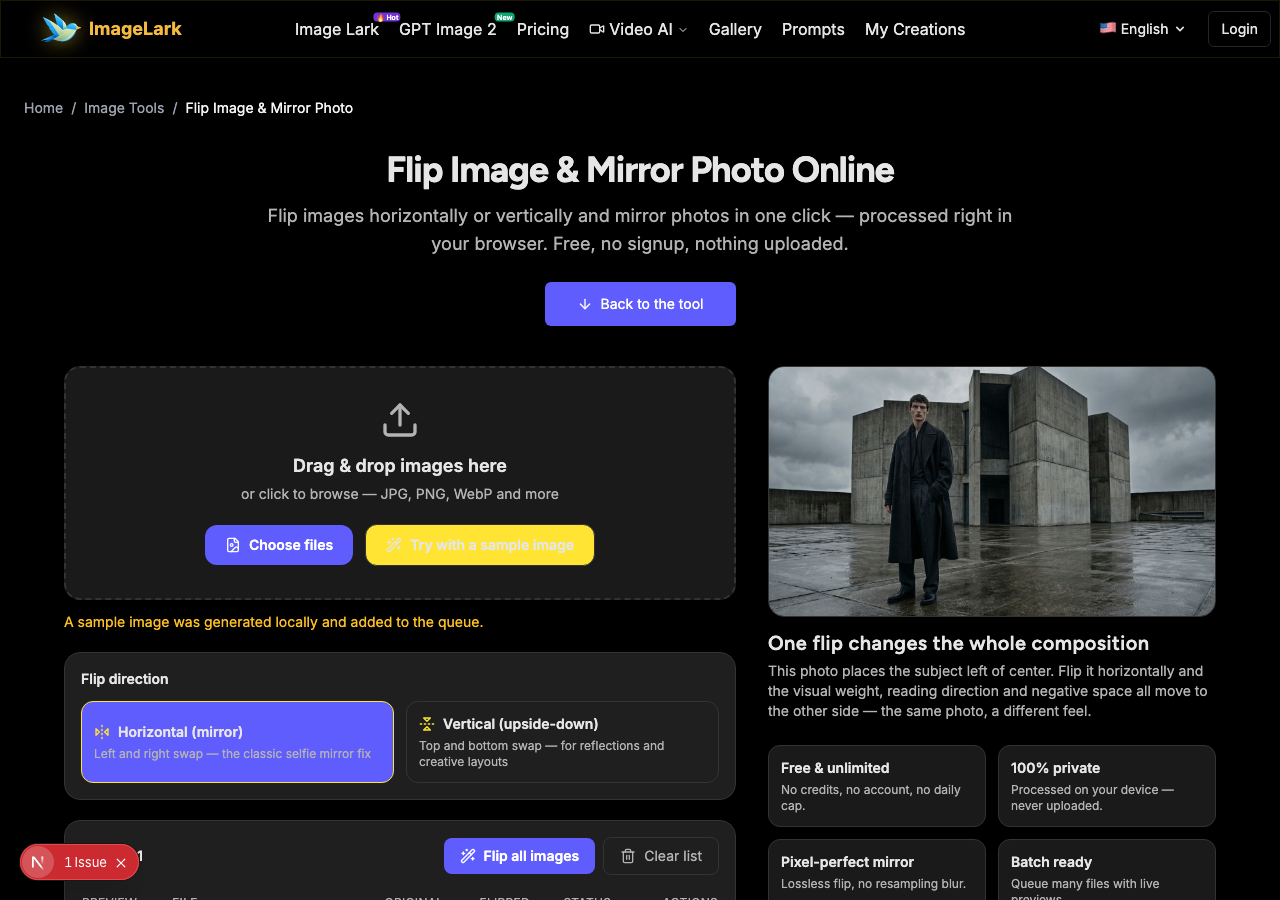
STEP 2
Pick the flip direction
Choose horizontal (mirror left-right) or vertical (top-bottom) with the direction switch. Press “Flip all images” and every queued photo flips the same way, each with a live preview thumbnail.
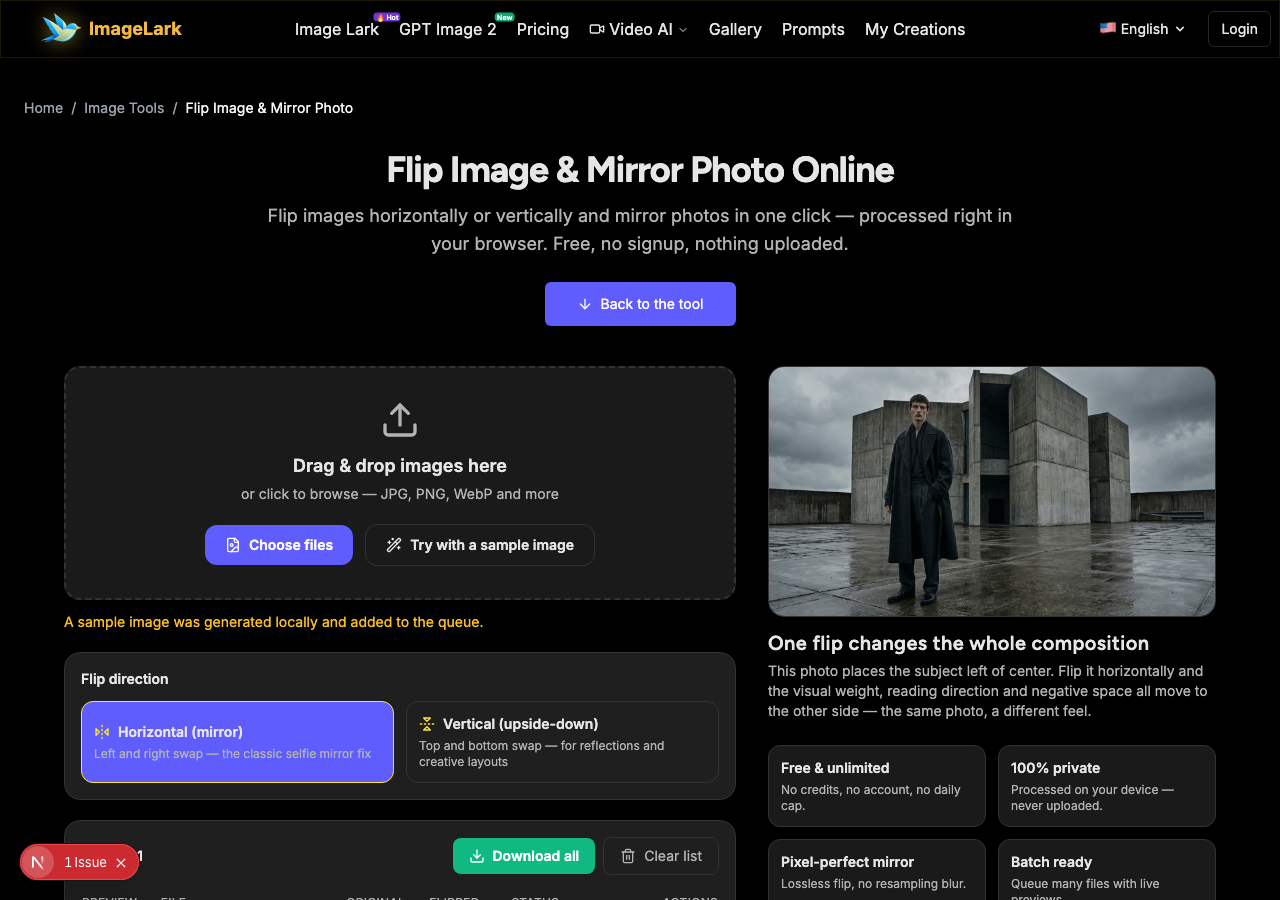
STEP 3
Download the mirrored image
Save individual results or grab the whole batch. Output is lossless PNG, so the flipped image keeps every pixel sharp — text and faces included.
Why Use ImageLark to Flip Images
Free with no limits
Flip one selfie or a hundred product shots — no credits, no account, no watermark on the output. It is a browser tool, not a trial.
Pixel-perfect mirroring
The flip reverses pixel rows and columns exactly — no resampling, no blur, no quality loss. Text, faces and fine lines stay as sharp as the original.
Your photos stay on your device
Flipping happens inside your browser tab. Nothing is uploaded or stored, so personal and client photos are safe — and the result appears instantly with no server round-trip. Every flip image comes out pixel-perfect, ready to download.
Both directions with live previews
Switch between horizontal mirror and vertical flip in one place, and check each result's thumbnail before downloading — perfect for comparing a flip's effect on composition across a batch.
Flip vs Rotate: Which One Do You Need?
Flipping and rotating both change orientation, but they answer different problems. Flipping mirrors the image across an axis: horizontal flip swaps left and right, vertical flip swaps top and bottom — the picture's content stays upright, but its left-right or up-down order reverses. Rotating turns the whole image around a center point by 90°, 180° or an arbitrary angle, changing which edge is “up” without mirroring anything.
Reach for a horizontal flip when a selfie faces the wrong way, text in a photo reads backwards, hair parted on the “wrong” side bothers you, or a composition reads better with the subject on the other side. Reach for rotation when a photo is sideways or upside-down — the classic phone-photo EXIF problem — or when you want a tilted, dynamic crop. Flipping a photo that is merely sideways will not fix it; rotating a photo whose text reads backwards will not fix it either.
One warning worth knowing: flipping anything containing text, logos or recognizable asymmetry creates a mirror image that no longer matches reality — reversed lettering on signs, swapped badges and mirrored faces. Great for art and layouts, wrong for documentation. And if your goal is a different effect entirely — turning colors into their negatives — that is color inversion, a completely separate operation with its own tool.
Other quick fixes: the JPG to PNG converter makes lossless copies for editing, the online image editor handles precise crops and adjustments, and the AI photo enhancer polishes quality.
Use Cases: Who Flips and Mirrors Images
Selfie & portrait fixes
Phone selfies are often saved mirrored from what you saw in the preview. Flip them back so hair partings, moles and room layouts match reality — or keep the mirrored version when it flatters more. You can flip image files right in your mobile browser with the same steps as desktop.
Design & layout balancing
Mirror stock photos and AI renders so the subject faces into the page, visual weight lands on the right side, and collages or banners read in the intended direction. Designers flip images online constantly for exactly this reason.
Print & craft transfers
Vertical flips (and horizontal mirrors) prepare designs for iron-on transfers, decals and rubber-stamp carving, where the artwork must be reversed before it is applied.
Frequently Asked Questions
How do I mirror flip an image?
Drop your image on this page, keep the direction switch on “Horizontal (mirror)” and press “Flip all images” — the mirrored result appears instantly with a preview, then download it. It is the standard way to flip images online: no app, no upload, works on JPG, PNG, WebP and more.
What's the difference between flip and rotate?
Flipping mirrors the image across a horizontal or vertical axis (left-right or top-bottom swap), while rotating turns the whole image by an angle without mirroring. A sideways photo needs rotation; backwards text needs a flip. Trying the wrong one cannot fix the problem.
Why do selfies look flipped?
The camera preview shows you a mirror image because that feels natural, but many phones save the un-mirrored frame — so the saved photo is the reverse of what you saw. Flipping the saved photo horizontally restores the view you expected. Some phones do this automatically; results vary by device and app.
Can I flip an image without losing quality?
Yes. Flipping is a pure rearrangement of existing pixels — no resampling, no compression artifacts. This tool outputs lossless PNG, so the flipped image is exactly as sharp as the original, pixel for pixel.
Can I flip a photo on my phone?
Yes. Open this page in the mobile browser, tap the upload area and pick a photo from your library — the steps are identical to desktop, and everything is processed on the device.
Is the flip tool free to use?
Completely free with no signup, no watermark and no daily limit. Flip images online as often as you like — they are processed locally in your browser, never uploaded anywhere, and the tool works offline once the page has loaded.
Relaterade AI-bildverktyg
Ready to Flip Your Image?
Flip images online and download a pixel-perfect mirror photo in seconds — free, private, watermark-free.