
Image to Text Converter Online
Drop a photo of any document, note or screenshot and get editable text in seconds — OCR runs right in your browser, nothing uploaded. Free, no signup.
Drag & drop an image here
or click to browse — photos of documents, screenshots, receipts
Files are processed entirely on your device — nothing is uploaded to any server.
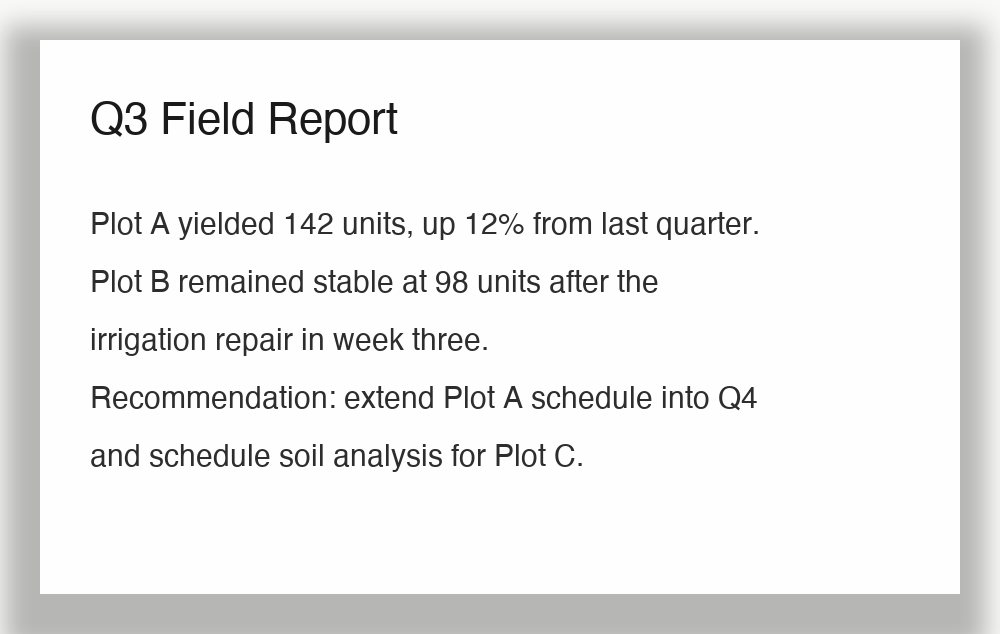
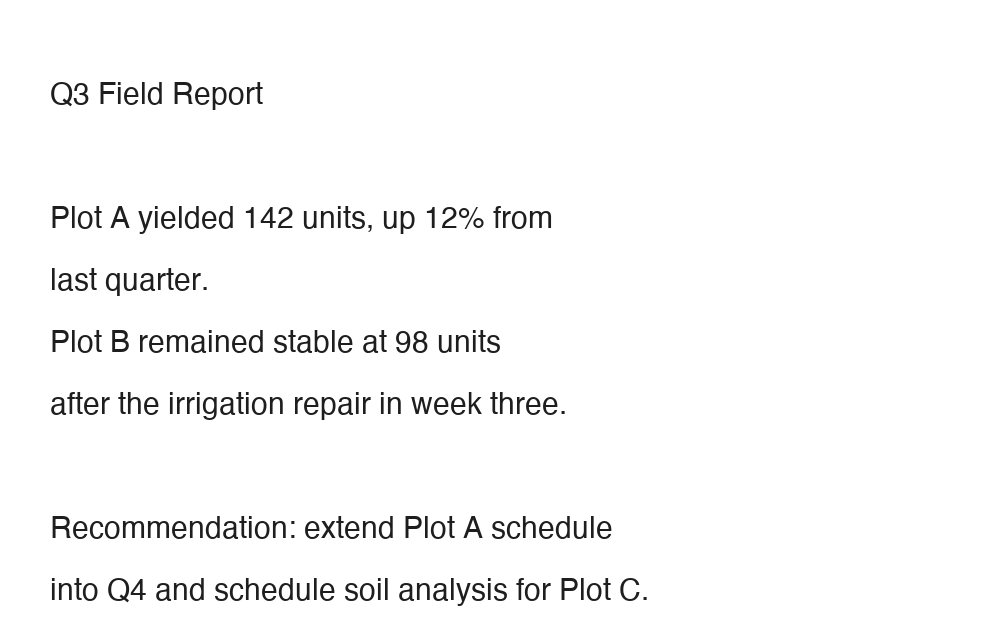
From paper photo to editable text
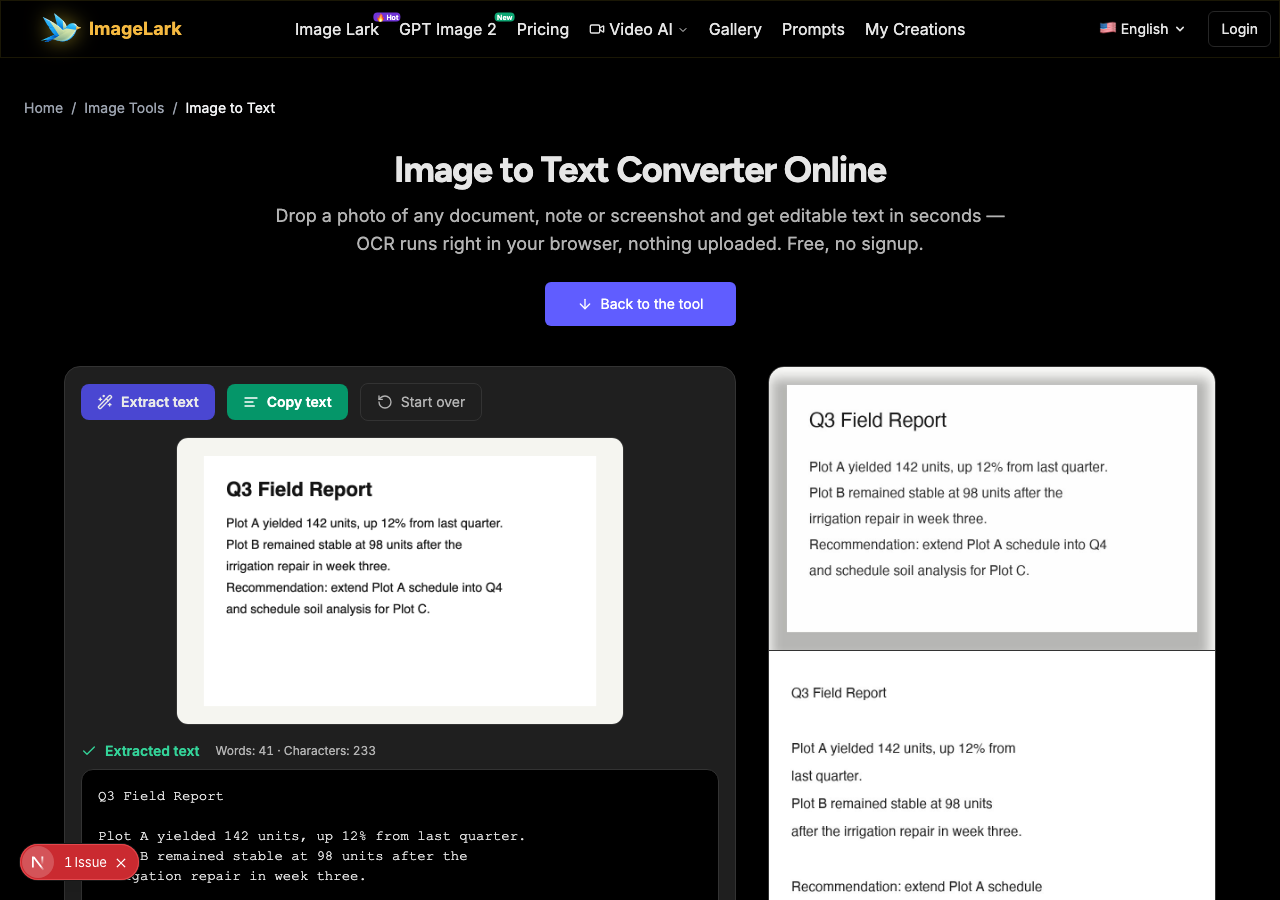
Top: a photo of a field report. Bottom: the extracted text, ready to copy into any editor — no manual typing.
Free & unlimited
Extract as many images as you like.
100% private
OCR runs on your device — never uploaded.
Copy-ready output
Editable text with one-click copy.
No install
Runs in any modern browser.
Free Online Image to Text Converter
This free image-to-text tool reads text out of photos, screenshots and scanned documents using OCR that runs entirely in your browser. Drop in a picture of a receipt, a whiteboard, a page of notes or a screenshot full of captions, and get clean, editable text you can copy anywhere — with nothing uploaded to any server.
Because the OCR engine runs locally on your device, it is safe for confidential material: contracts, invoices, medical letters and personal notes never leave your machine. There is no account, no watermark and no daily limit — and the extracted text appears in a copy-ready panel with word and character counts, so you can drop it straight into email, docs or code.
How to Extract Text from an Image in 3 Steps
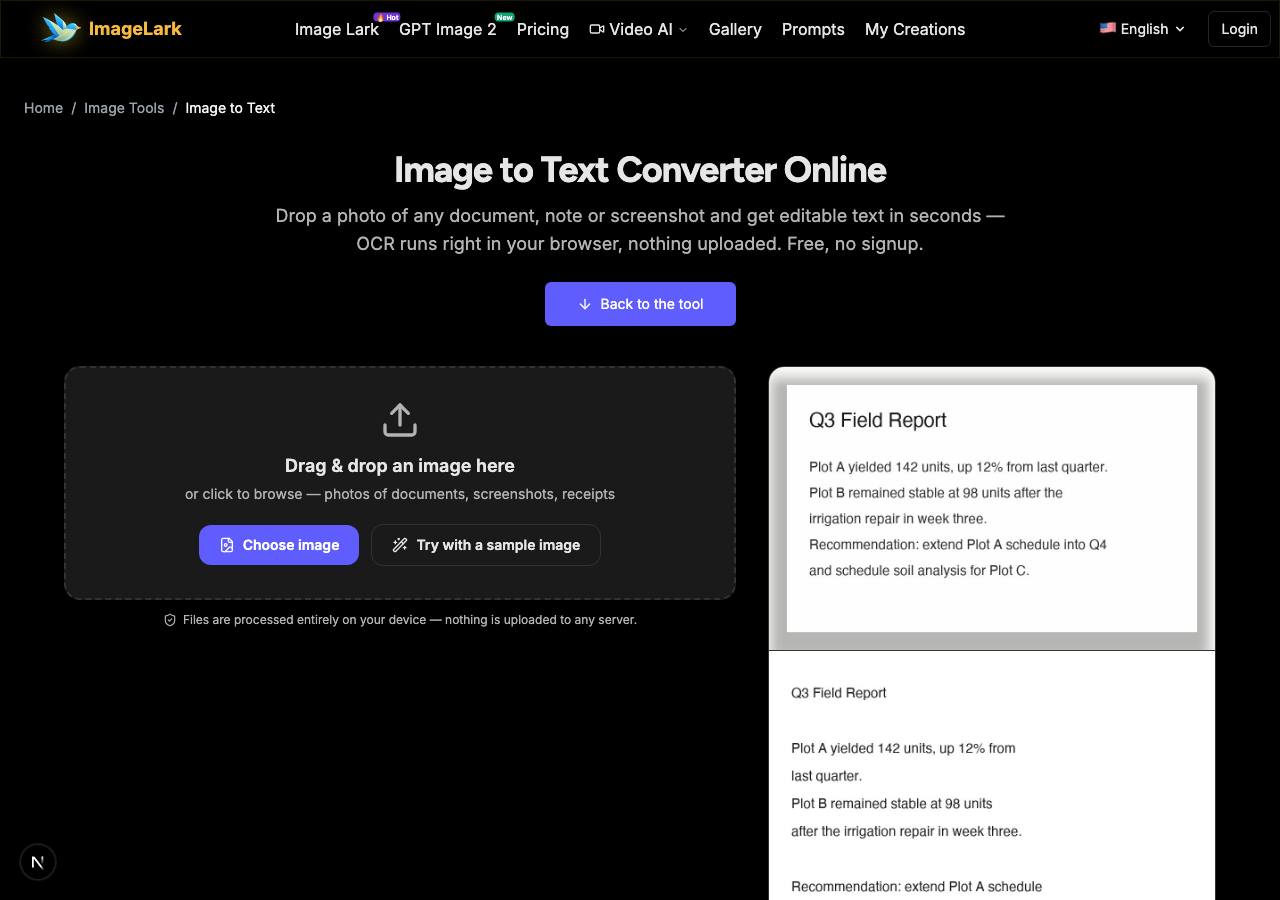
STEP 1
Add your image
Drag and drop a photo, screenshot or scan onto the tool above, or click to browse. You can also press “Try with a sample image” to watch the OCR work on a demo page.
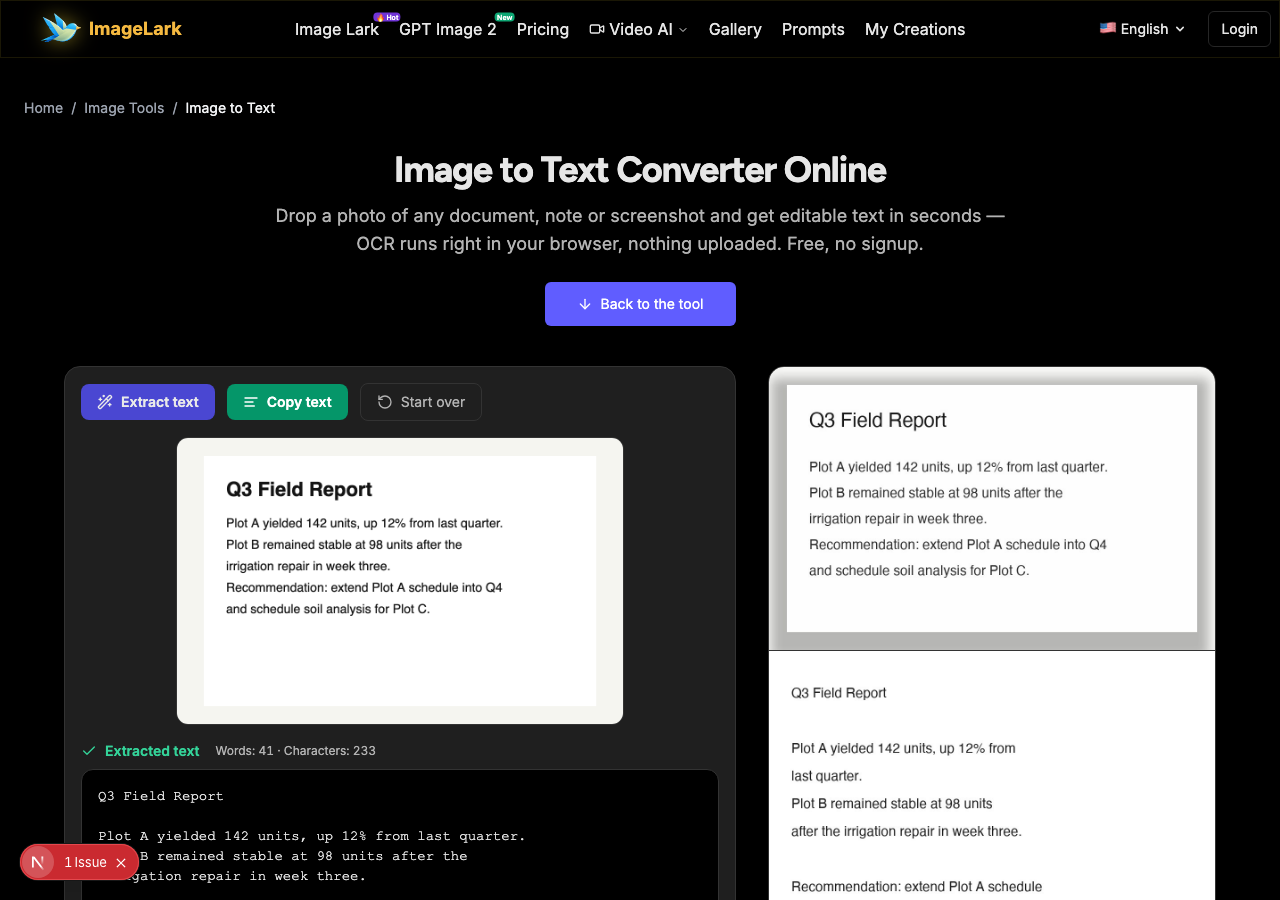
STEP 2
Extract the text
Press “Extract text”. The OCR engine reads the image locally — a progress indicator shows the engine loading and the recognition running.
STEP 3
Copy the result
The extracted text appears in an editable panel with word and character counts. Press “Copy text” and paste it into email, docs or code — done.
Why Use ImageLark for Image to Text
Free with no extraction caps
One receipt or a two-hundred-page archive, image by image — no credits, no account, no watermark. A browser tool, not a trial.
Confidential by architecture
OCR runs locally in your browser tab — contracts, medical letters and financial documents are never uploaded anywhere, which online OCR services cannot promise.
Copy-ready formatting
Output lands in an editable panel with word and character counts and a one-click copy button — no reformatting between extraction and use.
Print and handwriting friendly
Clear printed text extracts reliably; neat handwriting often works too. Sharper photos and even lighting consistently improve accuracy.
Image to Text vs AI Editor vs Screenshot Tools
Getting text out of an image has three routes, and they differ in what they produce. OCR (this page) converts lettering into actual selectable, editable text — the highest-fidelity result for typed content. AI image editing can remove or restyle text but still returns an image, not characters you can copy. Manual retyping is the zero-tool fallback with zero accuracy guarantees.
Use OCR for anything you will paste somewhere: receipts into expense reports, whiteboard photos into meeting notes, screenshots into bug tickets, printed pages into editable documents. Use the AI editor when the goal is changing the image itself rather than extracting its words. And skip manual retyping whenever the text is printed — OCR accuracy on clear print is excellent and fully verifiable in the preview.
Accuracy tips that apply to any OCR: photograph pages square-on under even light, avoid shadows across lines, and prefer prints over handwriting. Check numbers and names in the result — those are where recognition slips. For multi-language sources, clean scans of standard fonts extract best; stylized handwriting varies the most.
Same family: the HEIC to JPG converter makes iPhone photos usable first, and the crop tool trims the page before extraction.
Use Cases: Who Extracts Text from Images
Expenses & receipts
Turn restaurant bills, taxi receipts and invoices into text for expense reports — amounts stay verifiable in the preview before you copy.
Students & researchers
Pull quotes and passages from book photos and archive scans into notes and papers without retyping chapters by hand.
Screenshots everywhere
Recover error messages, chat excerpts and configuration text from screenshots so you can search, quote and share them as actual text.
Frequently Asked Questions
How do I copy text from an image?
Drop the image on this page, press “Extract text” and the recognized text appears in an editable panel — press “Copy text” and paste it anywhere. OCR runs entirely in your browser, with nothing uploaded.
Can OCR read handwriting?
Clear, neat handwriting often extracts well; cursive or stylized writing varies. Printed text is where OCR is strongest — for difficult handwriting, sharper photos and even lighting noticeably improve results.
Which languages does image to text support?
The default engine covers English and major Latin-script languages. Additional language packs extend coverage — check the engine options in the tool for the current list before processing non-Latin documents.
Is my document uploaded when extracting text?
No. The OCR engine runs inside your browser tab — contracts, medical letters and receipts never leave your device. This makes the tool safe for confidential material by architecture, not just by policy.
Does it work on screenshots?
Yes — screenshots of apps, chats, error messages and code are ideal OCR inputs because the text is digital-crisp. Extract captions, error copy or config snippets straight into tickets and docs.
Is the image to text tool free?
Completely free with no signup, no watermark and no extraction limit. It runs on desktop and mobile browsers, and nothing you process is uploaded to any server.
Related AI Image Tools
Ready to Extract Text from Your Image?
Drop it above and copy editable text in seconds — free, private, no install.