
AI Photo Retouching Online
Drop a portrait, describe the polish you want — smoother skin, blemishes gone, natural finish — and let AI retouch it. Free credits to try.
Modelinstellingen
Uw Schone Afbeelding Zal Hier Verschijnen
Upload een afbeelding met ongewenste objecten om de magie te zien!


Powered by the same AI editing engine as our Object Remover — sign in with free credits and describe the retouch in plain language.
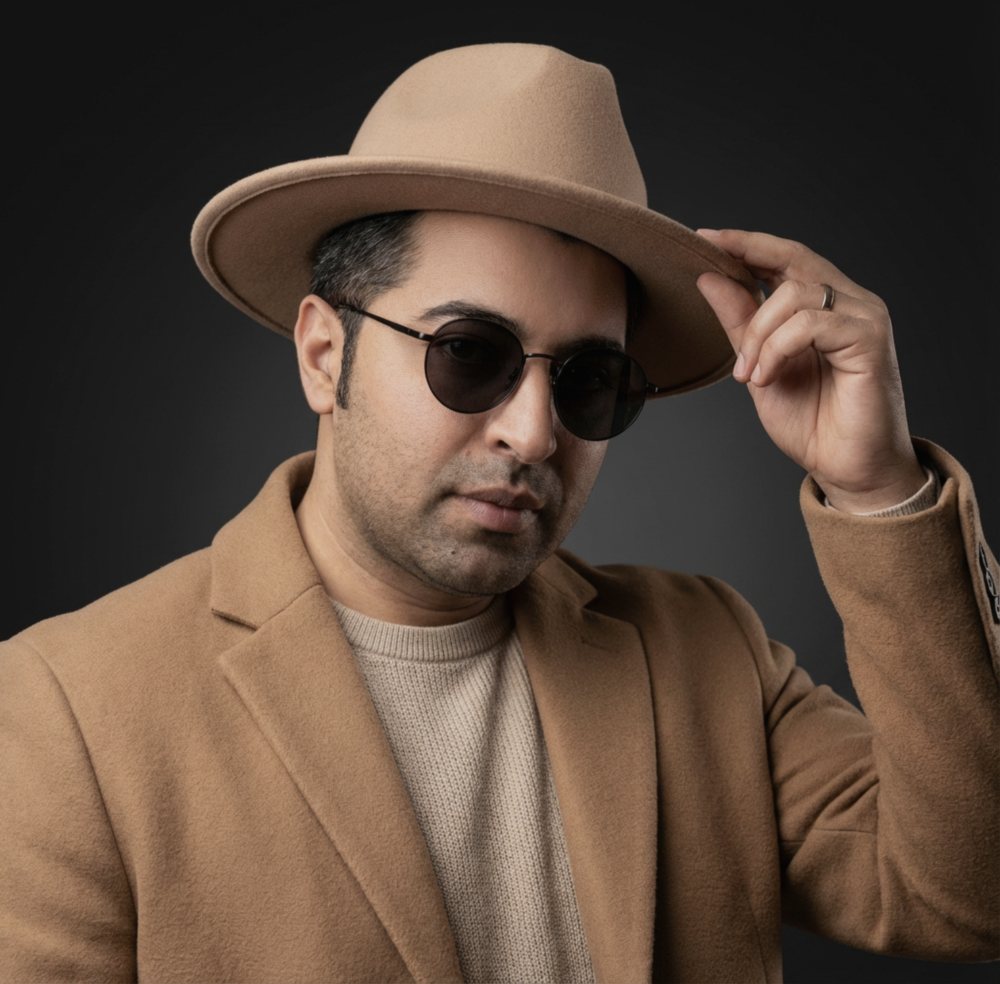
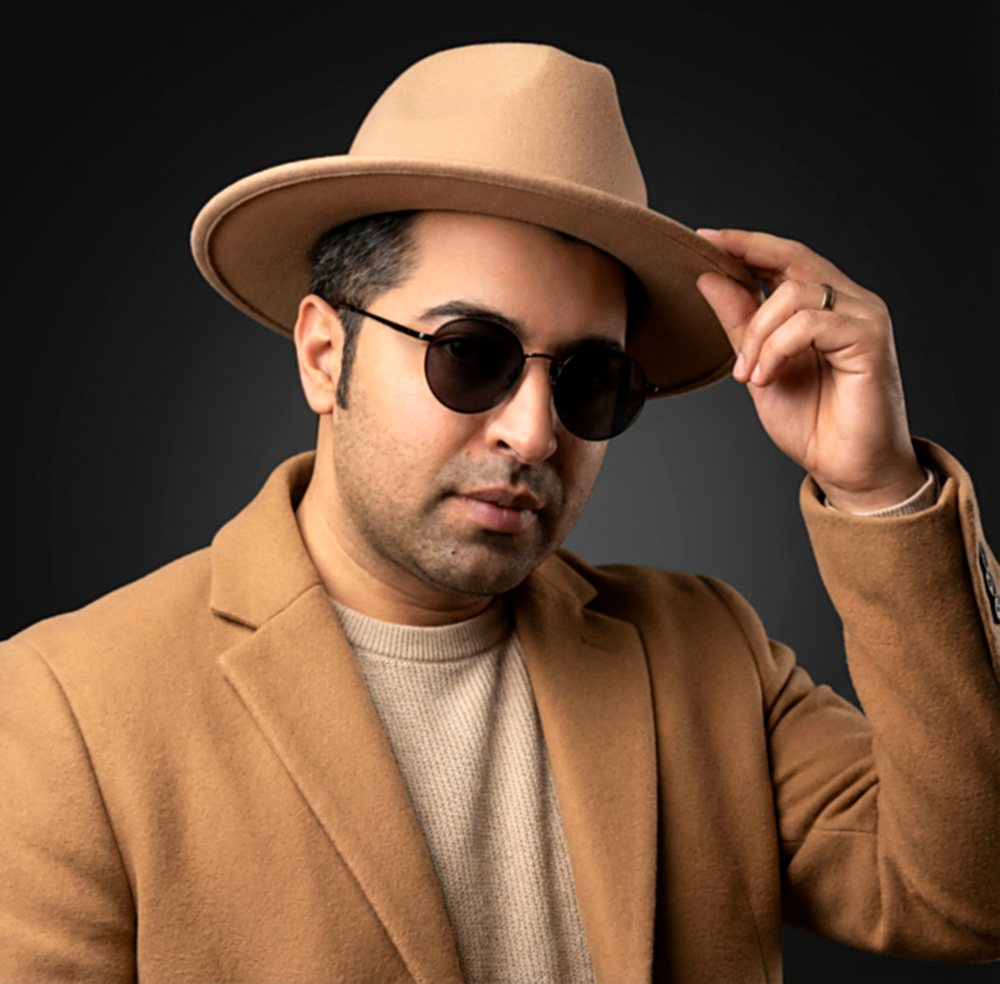
Polish without the plastic look
Top: the raw frame — slightly dull, uneven tone. Bottom: after retouching — smoothed skin texture, lifted brightness and gentle contrast, same person.
Free credits to start
Try real retouching before paying.
Natural finish
Polish, not plastic — texture preserved.
No watermark
Clean HD downloads.
Private by design
Uploads auto-deleted on a schedule.
Free Online AI Photo Retouching
AI photo retouching polishes portraits the way a retoucher would: evening out skin tone, softening blemishes and shine, brightening the subject, and keeping textures that make a face look human. On this page you retouch by description — upload a photo and write what you want in plain language (“smooth the skin, keep the texture”, “clean up blemishes, brighten the face”) — and the model applies it while preserving identity.
Retouching is the highest-value step in a portrait workflow and usually the most skilled one. The AI version takes the manual labor out: no frequency-separation layers, no dodge-and-burn brushing. Typical jobs — profile photos, team pages, marketplace portraits, family shots — come back in seconds with a natural finish. Free credits let you test the quality on your own photos before committing, and every download is HD without watermarks.
How to Retouch a Photo in 3 Steps
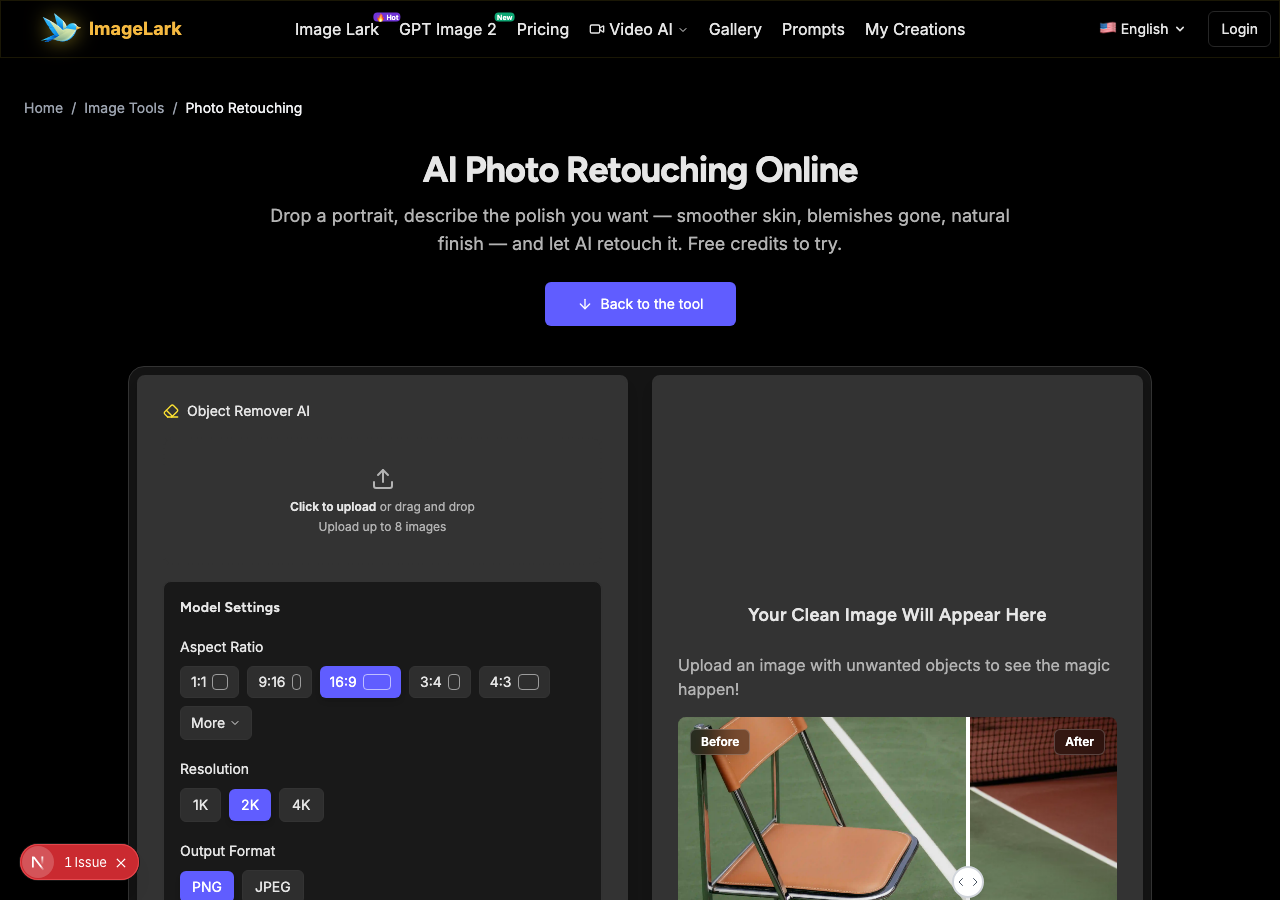
STEP 1
Upload the photo
Drop a JPG, PNG or WebP portrait into the tool above, or click to browse. Sign in with free credits — nothing to install, works on desktop and mobile.

STEP 2
Describe the retouch
Write the polish you want in plain language — “even out skin tone and remove blemishes, keep natural texture”, “brighten the face, reduce shine”. Specific instructions get specific results.

STEP 3
Review and download
The AI returns the retouched portrait in seconds. Compare with the original, re-run with adjusted wording if needed, and download the HD result — watermark-free.
Why Use ImageLark for Photo Retouching
Natural results, not plastic
The model is guided to preserve skin texture and identity — polish without the waxy, over-filtered look that gives AI editing a bad name.
Describe it, don't mask it
Traditional retouching means layers, brushes and hours. Here you write “remove blemishes, even the tone” and the AI handles selection and execution — retouching by sentence.
Free credits, HD output
Test on real work with free credits before paying anything, and download watermark-free HD results — the economics of a retoucher at a fraction of the cost.
Private by design
Portraits are personal. Uploads are processed for the edit and deleted on a fixed schedule — and as with all removal tools, retouch only photos you own or have permission to edit.
Retouch vs Enhance vs Restore: Which Does Your Photo Need?
Three related finishes, three different jobs. Retouching (this page) is local and deliberate: skin, blemishes, shine, small marks — polished while everything else stays as shot. Enhancing is global: the AI photo enhancer lifts overall quality — contrast, color, clarity — across the whole frame in one pass. Restoring is repair: the old-photo restorer rebuilds damage — scratches, tears, fading — that time inflicted.
Pick retouching when the photo is basically good and the subject needs polish: portraits, headshots, profile pictures. Pick enhancing when the whole image feels flat or dull and the subject is not people-specific. Pick restoring when the photo is physically damaged or decades old. The order matters too: restore damage first, retouch the subject second, enhance globally last.old-photo restorer
One boundary worth knowing: retouching works on photographic imperfections, not on missing content. It will not invent a smile, fix closed eyes or move a light source — that is generative editing territory, which the AI image editor covers through plain-language instructions. Keep each tool in its lane and the workflow stays predictable.
The finishing family: the old photo restorer repairs damage first, this page polishes the subject, and the sharpen tool adds final snap.
Use Cases: Who Retouches Photos
Professional profiles
LinkedIn, team pages and speaker bios — polish headshots to a consistent, natural standard without a studio session.
E-commerce & marketplaces
Model and lifestyle shots sell better with clean, even finishes — retouch product-adjacent portraits to a consistent house style.
Family & events
Soften shine and blemishes in wedding, graduation and holiday photos so everyone looks like they had a good day — because they did.
Frequently Asked Questions
What does photo retouching mean?
Retouching is the polish pass on a photo: evening skin tone, softening blemishes and shine, reducing small distractions, adjusting brightness on the subject. It improves the existing photo — it does not replace backgrounds or invent content.
Can AI retouching look natural?
Yes, when texture is preserved. This tool is prompted toward natural finishes — smooth tone without erasing pores or features. Avoid instructions like “make skin perfect”; ask for “natural smoothing, keep texture” and the result stays believable.
How do I remove blemishes from a photo?
Upload the portrait above and describe them — “remove the blemishes on the cheeks and forehead, keep everything else natural”. The AI retouches the described areas while preserving the rest of the image.
Is retouching different from filtering?
Yes. A filter applies one global look to the whole frame. Retouching is targeted and local: specific areas get specific treatment while the rest stays as shot — which is why it looks intentional rather than processed.
Can I retouch photos for free?
New accounts get free credits that cover several retouches, so you can judge the quality on your own photos first. After that, retouches cost a small credit amount per image — sign in to see your balance.
Who can I retouch photos of?
Photos you own or have permission to edit — your own shots, clients who hired you, family who asked. Retouching other people's photos of themselves without consent is a privacy matter as much as a copyright one; keep it consent-first.
Gerelateerde AI-beeldtools
Ready to Retouch Your Photo?
Drop a portrait, describe the polish and download a natural finish in seconds — free credits to try.