
Rotate Image Online
Drop an image, turn it 90°, 180° or flip it back upright in one click — processed right in your browser. Free, no signup, nothing uploaded.
Drag & drop an image here
or click to browse — JPG, PNG, WebP and more
Files are processed entirely on your device — nothing is uploaded to any server.


The classic sideways photo, fixed
Top: the photo as it was stored — a perfect shot, rotated sideways on its side. Bottom: after one 90° turn, the horizon is level and the frame is back to landscape.
Free & unlimited
Rotate as many images as you like.
100% private
Rotated on your device — never uploaded.
Lossless 90° turns
No resampling on right-angle rotations.
Instant preview
See every turn before you download.
Free Online Image Rotator
This free online rotator turns any image 90° clockwise, 90° counter-clockwise or 180° in a single click, with an instant preview of every position. It runs entirely inside your browser tab — the image is rotated locally and never touches a server, so there is no upload wait, no file size limit and no privacy trade-off.
The job it does best is the one everyone knows: the phone photo that looks perfect on your phone but arrives sideways or upside-down everywhere else — the classic EXIF orientation problem. Beyond fixing direction, quick quarter-turns are everyday helpers: turning a scanned document upright, rotating a chart to fit a slide, or flipping a composition to landscape for a banner. Right-angle rotations are lossless — pixels are rearranged, never resampled. Rotate image files as often as you need: no account, no watermark, no cap.
How to Rotate an Image in 3 Steps
STEP 1
Add your image
Drag and drop a JPG, PNG or WebP file onto the tool above, or click to browse. You can also press “Try with a sample image” — it loads a sideways photo so you can practice the fix.
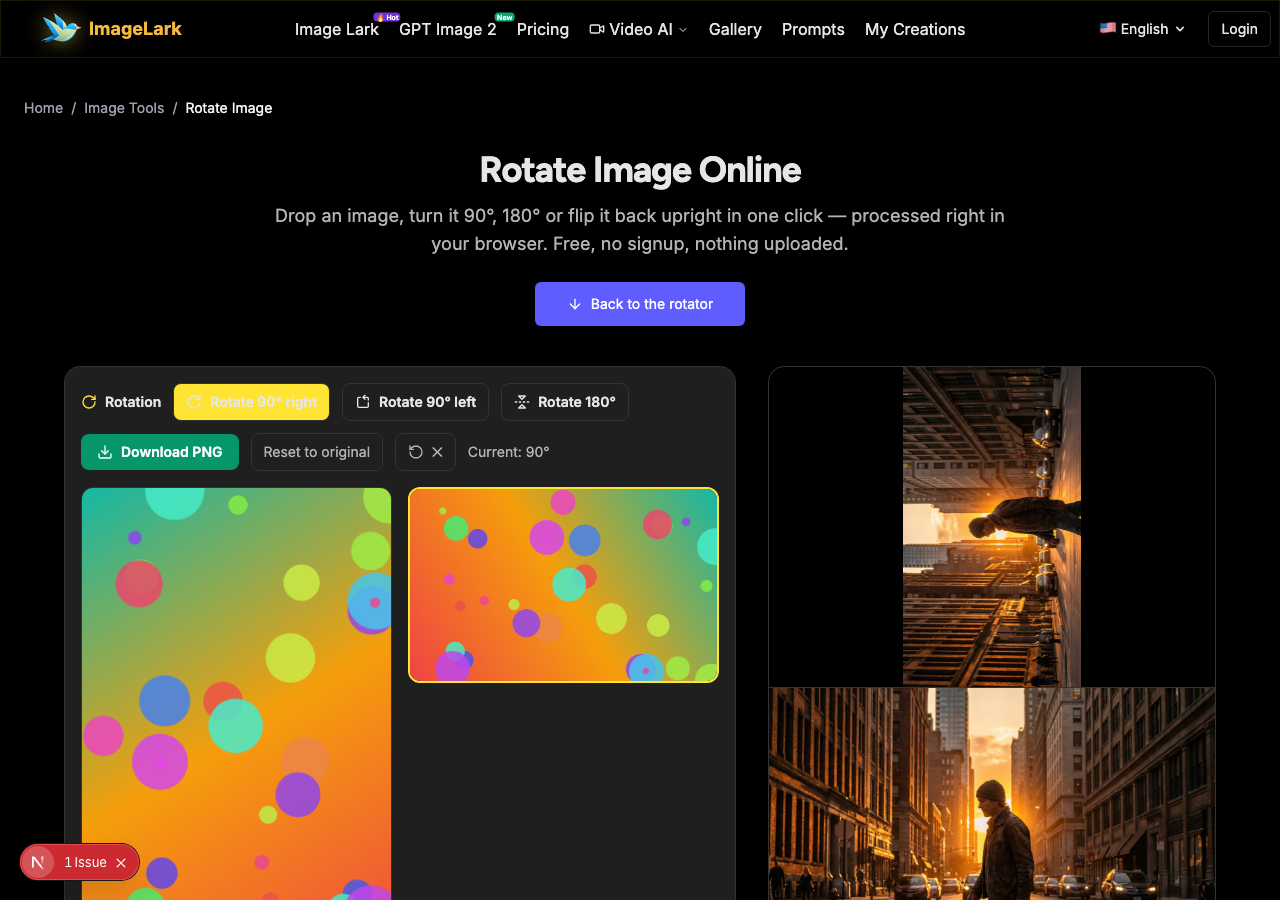
STEP 2
Turn it
Click “Rotate 90° right”, “Rotate 90° left” or “Rotate 180°” as many times as needed. The preview updates instantly and shows the current angle, so you always know where you are.
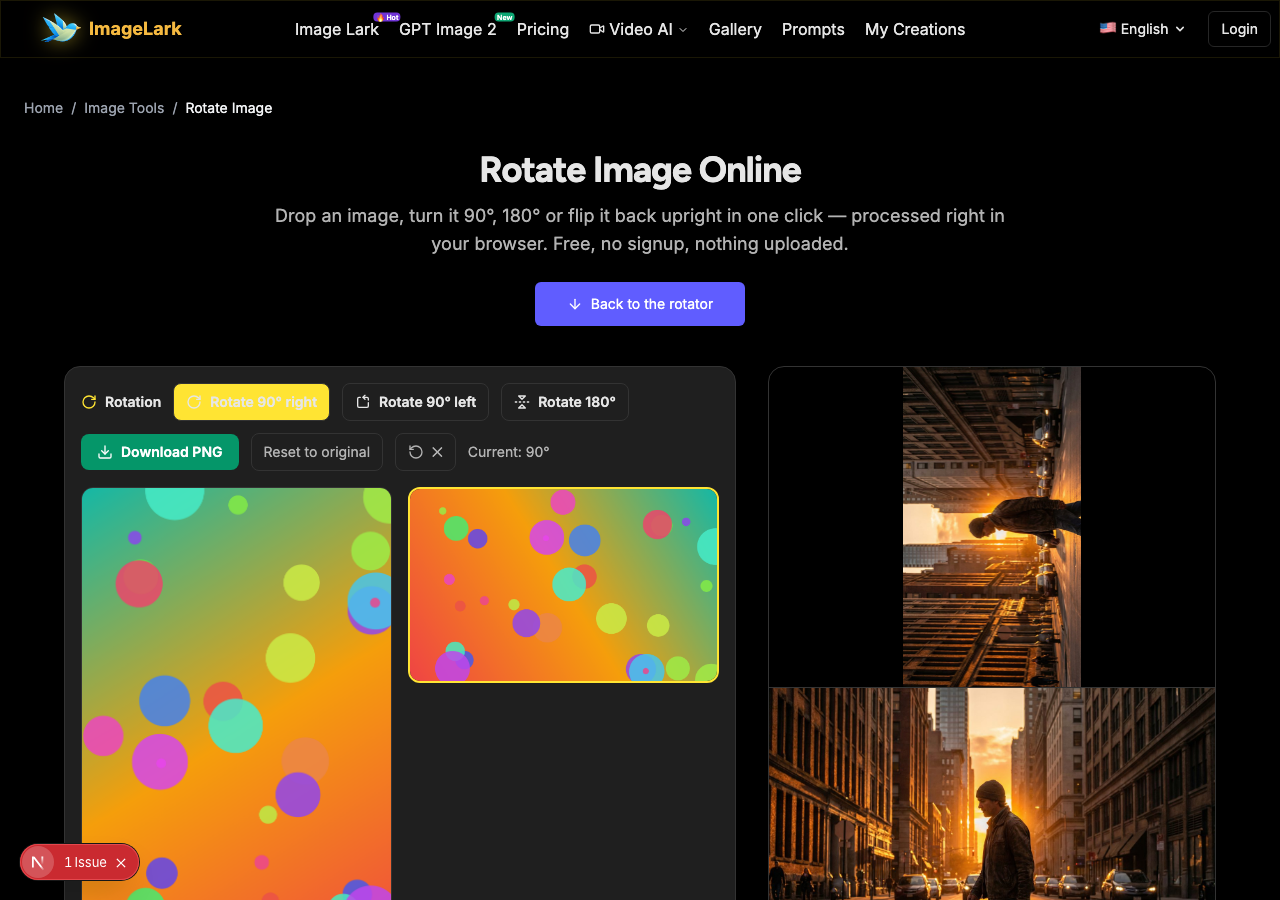
STEP 3
Download the corrected image
Happy with the orientation? Download it as a clean, watermark-free PNG. “Reset to original” brings back the starting position whenever you want a do-over.
Why Use ImageLark to Rotate Images
Free with no limits
Fix one sideways photo or rotate a whole shoot's worth, one image at a time — no credits, no account, no watermark. It is a browser tool, not a trial.
Lossless right-angle turns
90° and 180° rotations rearrange pixels without resampling — the rotated image is exactly as sharp as the original. Nothing is softened, cropped or recompressed by the turn itself.
Your photos stay on your device
Rotation happens in your browser tab. Nothing is uploaded or stored — confidential scans and personal photos never leave your machine, and each turn is instant with no server round-trip.
Preview every position
See the image at 0°, 90°, 180° and 270° instantly before downloading. No guessing which way the photo will land — check, tweak, download.
Rotate vs Flip vs Crop: Three Different Fixes
These three operations all modify framing, and they get confused constantly — mostly because a sideways photo tempts people to try all of them. Rotating turns the image around its center: 90° makes landscape from portrait (or the reverse), 180° fixes upside-down photos, and nothing is mirrored in the process — text keeps reading left to right.
Flipping mirrors the image across an axis: left and right swap (horizontal) or top and bottom swap (vertical). Rotation cannot reproduce a flip, and a flip cannot fix a sideways photo. If a photo reads backwards — mirrored selfies are the classic case — that is a flip job. If it is merely pointing the wrong way, that is rotation.
Cropping is different again: it changes what is in the frame rather than the frame's direction. You crop to cut out edges, isolate a subject or hit an exact aspect ratio — not to fix orientation. The three tools stack in real workflows: rotate a photo upright, crop it to your target ratio, then compress or convert it for wherever it is going.
Nearby tools: the flip and mirror tool for reversed selfies, the image splitter for grid tiles, and the sharpen tool to add finishing snap after a fix.
Use Cases: Who Rotates Images
Sideways phone photos
Photos that look right on the phone but arrive sideways in email, on other devices or after upload — one quarter-turn makes them presentable everywhere.
Scans & documents
Scanner feeds and photocopies frequently come out 90° or 180° off. Rotate the scan upright before OCR, printing or filing it.
Slides, banners & layouts
Turn charts, diagrams and product shots to fit landscape or portrait slots in decks, posts and print layouts without recreating them.
Frequently Asked Questions
How do I rotate an image online?
Drop your image on this page and click “Rotate 90° right” (or left, or 180°) until the preview looks right, then download. To rotate image files it is the same on every platform: nothing to install, and your photo never leaves your device.
How do I fix a sideways photo?
Load the photo, click the quarter-turn button that levels the horizon (usually one click of “Rotate 90° right” or left), and download. If a photo is upside-down rather than sideways, a single 180° turn fixes it.
Why does my photo look sideways on my computer but fine on my phone?
Your phone stores a small EXIF flag that tells apps to display the image rotated. Many phone apps honor that flag, but some websites, editors and older programs ignore it and show the raw pixels — sideways. Rotating and saving a new copy bakes the orientation in so it looks right everywhere.
Does rotating reduce image quality?
No — right-angle rotations (90°, 180°, 270°) only rearrange pixels, so this tool's output is exactly as sharp as the input. Quality is only lost when an image is rotated by odd angles, which requires resampling, or when it is repeatedly re-saved in a lossy format.
Can I rotate a photo by a custom angle like 45°?
This tool covers the everyday right angles that fix orientation. Arbitrary angles like 45° require the corners to be filled or cropped, which is an editing job — the online image editor or any desktop editor handles that.
Is the rotate tool free to use?
Completely free with no signup, no watermark and no daily limit. Rotation runs locally in your browser — photos are never uploaded, and the tool works offline once loaded.
أدوات الصور بالذكاء الاصطناعي ذات الصلة
Ready to Rotate Your Image?
Drop it above, turn it upright and download in seconds — free, private, watermark-free.