Crop Image Online
Drop an image, drag your crop frame and download the exact selection — pixel sizes and social presets included, processed right in your browser. Free, no signup.
Drag & drop an image here
or click to browse — JPG, PNG, WebP and more
Files are processed entirely on your device — nothing is uploaded to any server.
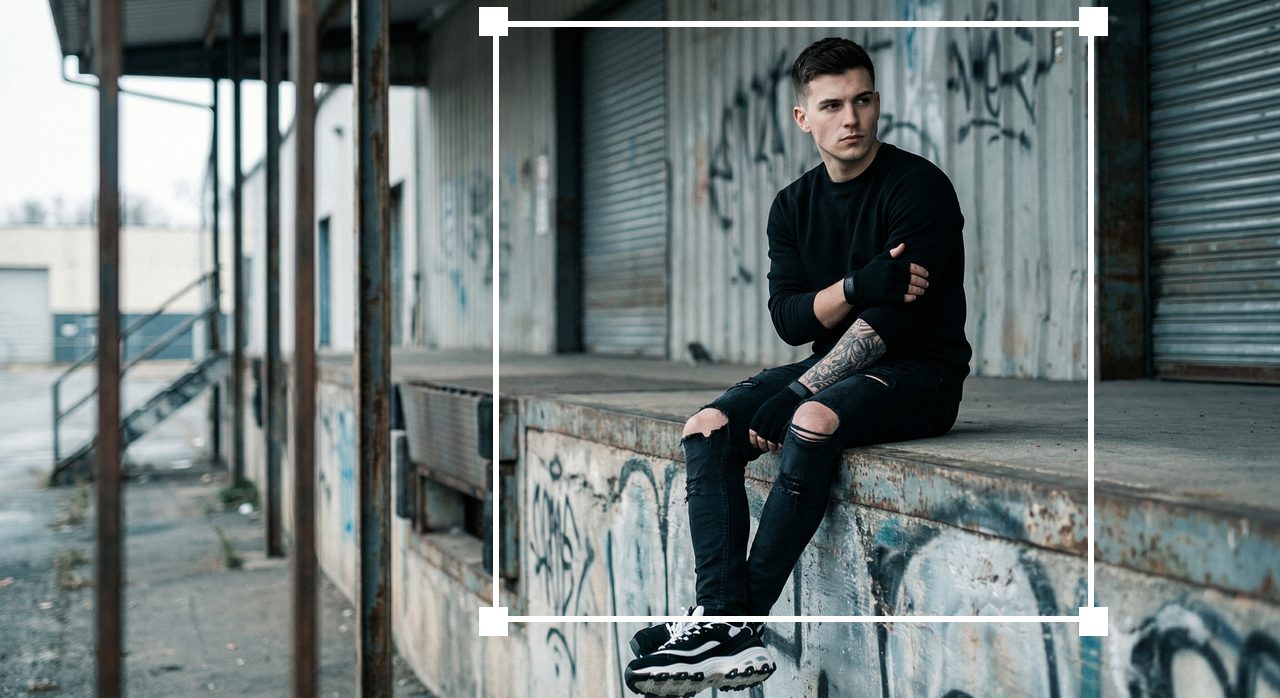
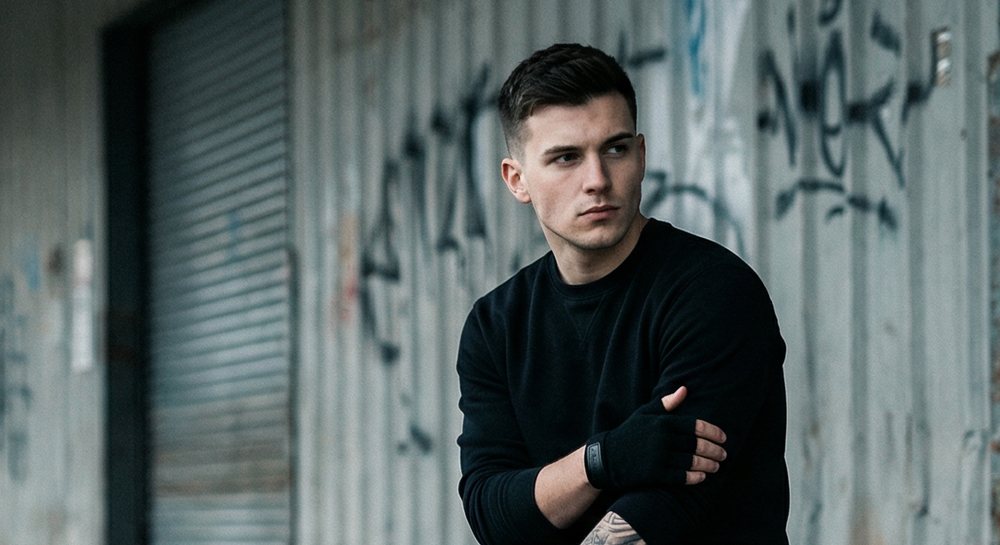
From wide shot to portrait square
The original 16:9 frame on top with a crop rectangle drawn around the subject; below, the resulting 1:1 crop — subject centered, clutter gone.
Free & unlimited
Crop as many photos as you like.
100% private
Cropped on your device — never uploaded.
Pixel-exact output
Lossless cut, no resampling blur.
Social presets
1:1, 4:5, 16:9 and free-form.
Free Online Image Cropper
This free online cropper cuts photos down to exactly what you want to keep: drag a rectangle on the image, lock an aspect ratio if you need one (square for avatars, 4:5 for social posts, 16:9 for banners), and export the selection as a pixel-exact file. The crop is a true cut — pixels outside the rectangle are discarded, pixels inside stay untouched — so the result is as sharp as the original.
Cropping is the most-used edit in photography because every destination wants a different frame: an avatar needs a square, a marketplace listing wants 4:5, a YouTube thumbnail is 16:9, and a print needs exact inches at 300 DPI. Doing it in your browser means no app, no account and no upload — your photos are cut locally and downloaded instantly, with the original file never modified or transmitted.
How to Crop an Image in 3 Steps
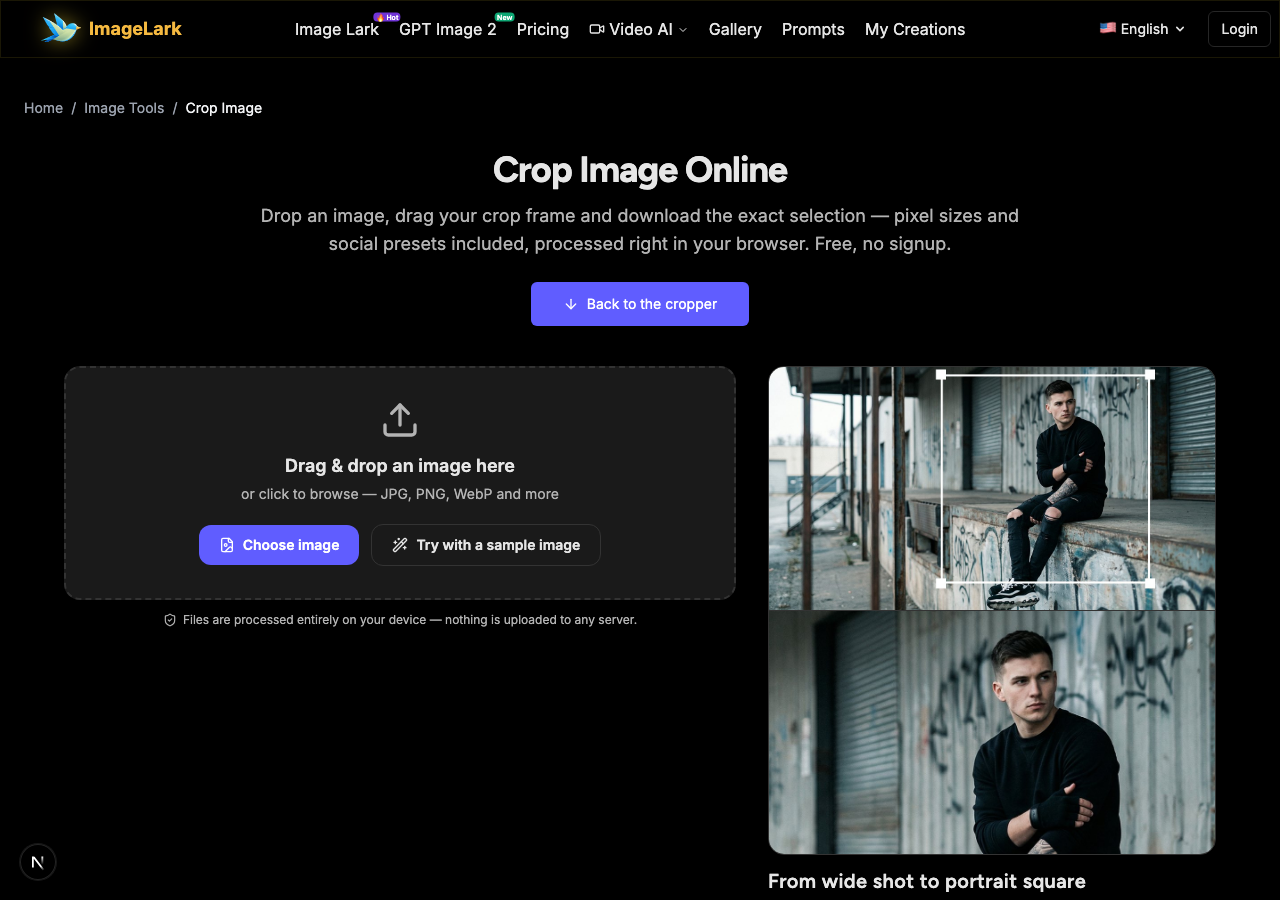
STEP 1
Add your image
Drag and drop a JPG, PNG or WebP file onto the tool above, or click to browse. You can also press “Try with a sample image” to practice the gesture first.
STEP 2
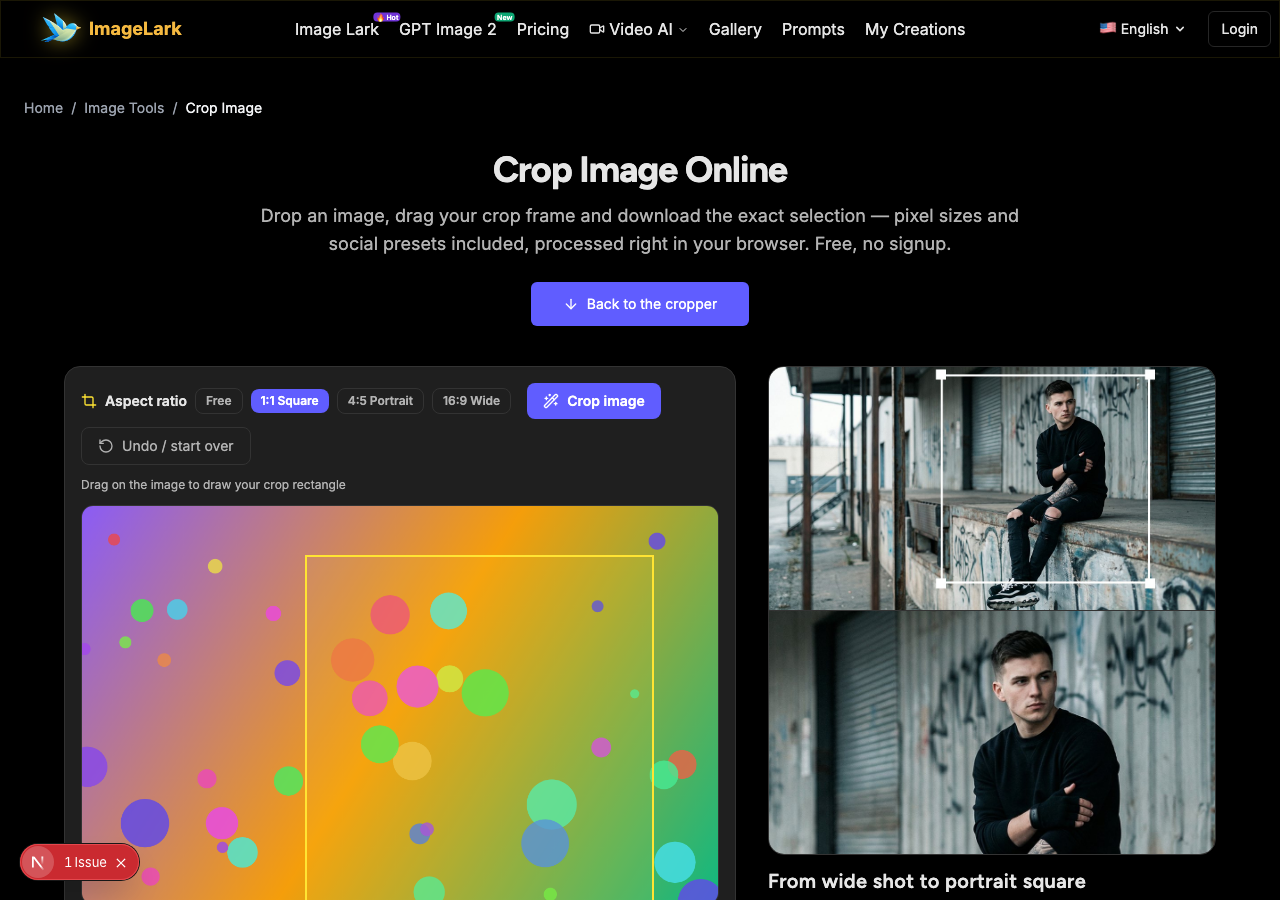
Draw the crop rectangle
Drag on the image to draw your selection, or pick an aspect-ratio preset to constrain it. The rectangle shows exactly which pixels will be kept — adjust until the frame is right.
STEP 3
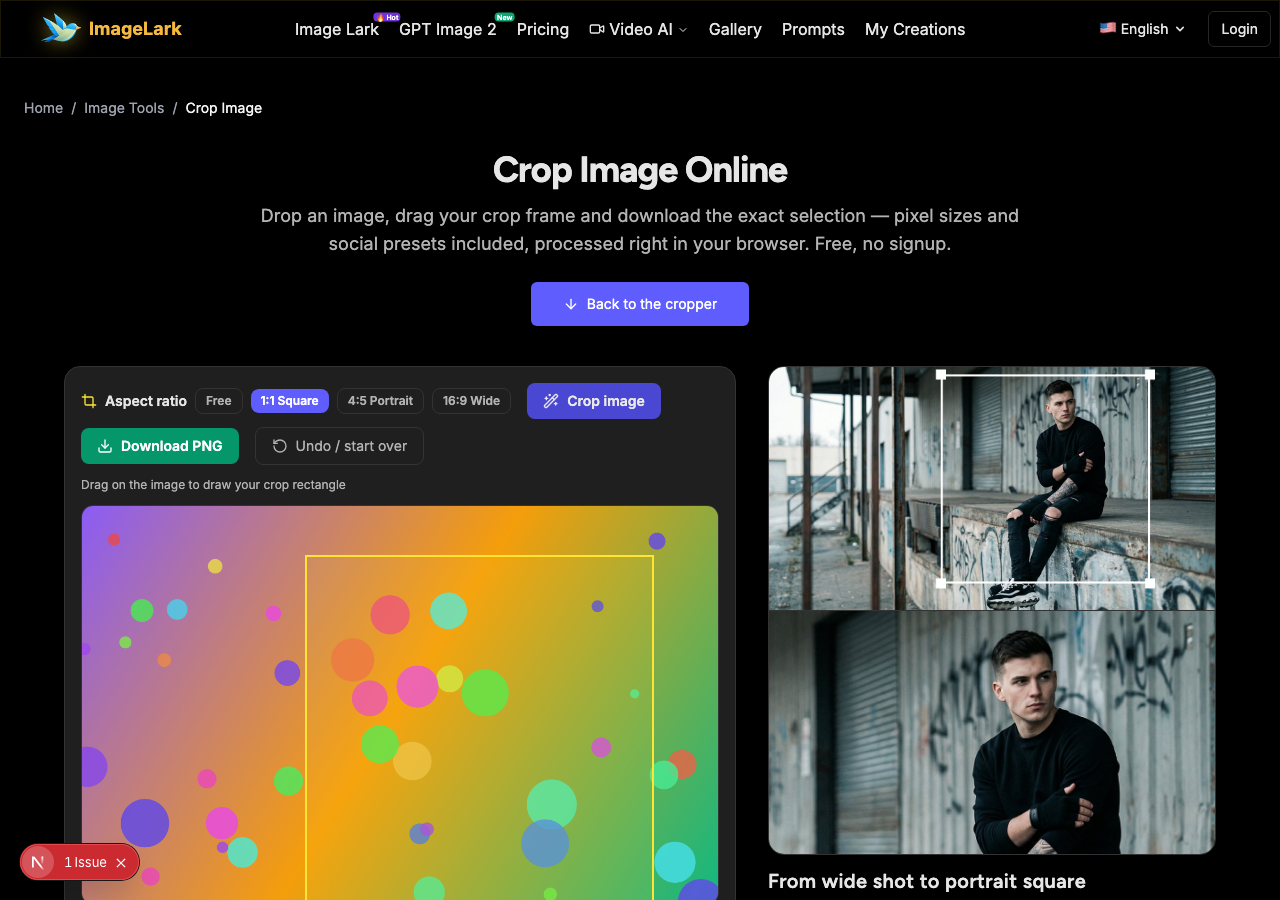
Crop and download
Press “Crop image” and the selection is cut instantly — download it as a lossless PNG. Start over any time; the original file is never modified.
Why Use ImageLark to Crop Images
Free with no limits
Crop one avatar or a hundred listing photos — no credits, no account, no watermark on the output. It is a browser tool, not a trial.
Pixel-exact, lossless cuts
The crop copies pixels 1:1 — no resampling, no softening, no quality loss. What you frame is exactly what you get, at full original sharpness.
Your photos stay on your device
Cropping runs locally in your browser tab. Nothing is uploaded or stored, so client work and personal photos never leave your machine — and every adjustment is instant.
Presets for every destination
Lock to 1:1 for avatars, 4:5 for Instagram posts, 16:9 for banners — or go free-form. The rectangle always shows the truth of what you will get.
Crop vs Resize vs Split: Three Ways to Reframe
Crop, resize and split all change how an image fits its destination, and mixing them up wastes time. Cropping discards everything outside your rectangle: the image gets smaller in content but every kept pixel keeps its original sharpness. Resizing scales the whole image to new dimensions: nothing is discarded but pixels are resampled, which is why upscaling softens.
Use crop to fix composition: remove cluttered edges, center a subject, or hit an exact aspect ratio like 1:1 for an avatar. Use resize when the whole photo must become larger or smaller — platform dimension limits, print sizes. Use a splitter when you need the image delivered as several pieces — social grids and long-screenshot chunks — without losing any of the frame.
Order matters in real workflows. Crop first while you still have all the pixels to choose from, then resize the crop to the exact target dimensions, and compress last. And when a destination needs orientation changed rather than content removed — a sideways photo, a mirrored selfie — that is rotation and flipping, which are different operations with their own tools.
Nearby tools: the image splitter cuts photos into tiles, the sharpen tool adds finishing snap, and the pixelate tool hides private details.
Use Cases: Who Crops Images
Avatars & profiles
Cut a clean 1:1 square centered on the face for LinkedIn, GitHub, Discord and every platform that rounds your picture into a tiny circle.
Social posts
Instagram's 4:5 and 1:1, X's 16:9, Pinterest's 2:3 — crop to each platform's exact ratio so nothing important gets cut off by their UI.
Products & documents
Trim marketplace product shots to the item, and cut scanned documents to the page — clean edges without manual pixel math.
Frequently Asked Questions
How do I crop a picture online?
Drop your image on this page, drag a rectangle over the part you want to keep (or lock an aspect preset first), press “Crop image” and download. It runs in any browser — no app, no signup, and your photo never leaves your device.
What aspect ratio should I use for Instagram?
Instagram feed posts support 1:1 (square) and 4:5 (portrait) as the main options — 4:5 occupies the most screen space in the feed. Stories and Reels use 9:16. Lock the preset here, crop once, and the platform will not re-cut your composition.
Does cropping reduce image quality?
No. Cropping discards pixels outside the rectangle and keeps the inside pixels untouched — the result is exactly as sharp as that region of the original. Quality is only lost by resizing (resampling) or saving repeatedly to lossy formats.
Can I crop to an exact pixel size?
Yes — lock an aspect ratio, drag the rectangle until the preview shows your target pixel dimensions in the corner readout, then crop. For arbitrary exact sizes, crop freely first and resize the result to the precise pixel count.
What's the difference between crop and resize?
Cropping removes pixels outside your selection (composition changes, sharpness unchanged); resizing scales all pixels to new dimensions (content stays whole, sharpness resamples). Remove edges with crop; change dimensions with resize — most workflows use crop first, then resize.
Is the crop tool free to use?
Completely free with no signup, no watermark and no daily limit. Cropping runs locally in your browser — photos are never uploaded, and the tool works offline once loaded.
Verwandte KI-Bildtools
Ready to Crop Your Image?
Drop it above, drag your frame and download the exact cut in seconds — free, private, watermark-free.