
Invert Image Colors Online
Drop an image and invert image colors to their opposite in one click — a perfect photo negative, processed right in your browser. Free, no signup, nothing uploaded.
Drag & drop images here
or click to browse — JPG, PNG, WebP and more
Files are processed entirely on your device — nothing is uploaded to any server.
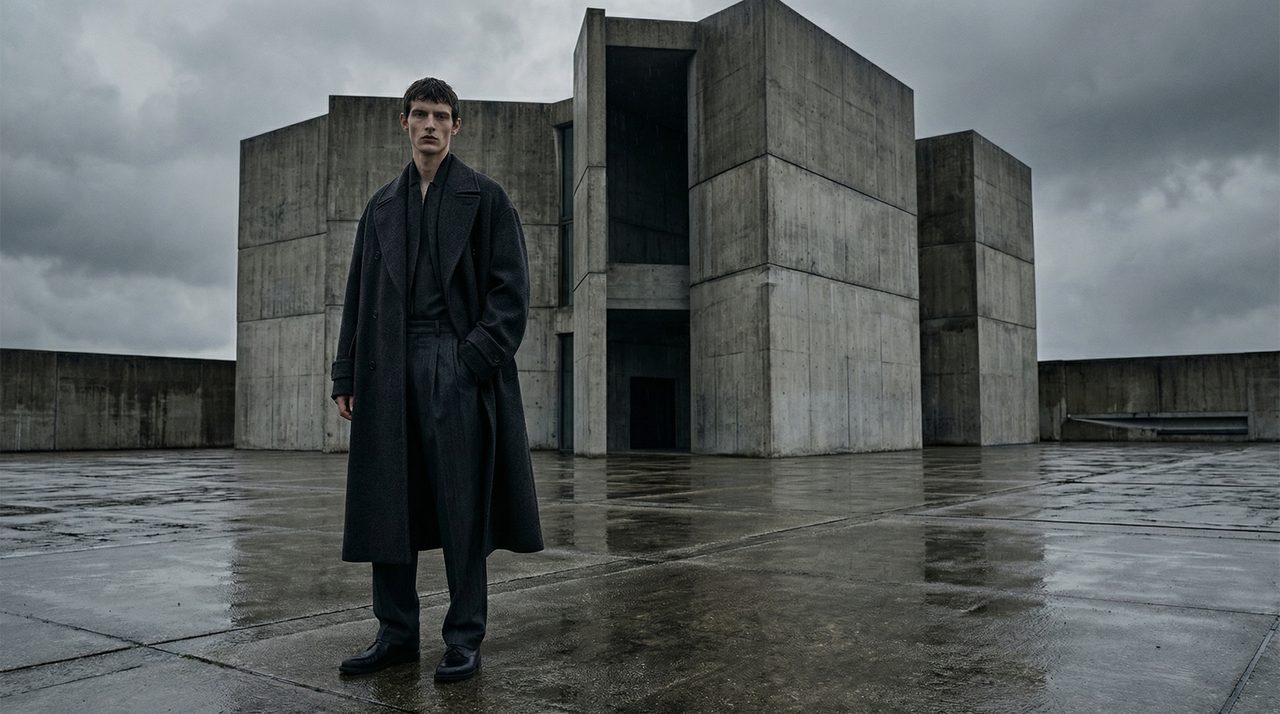
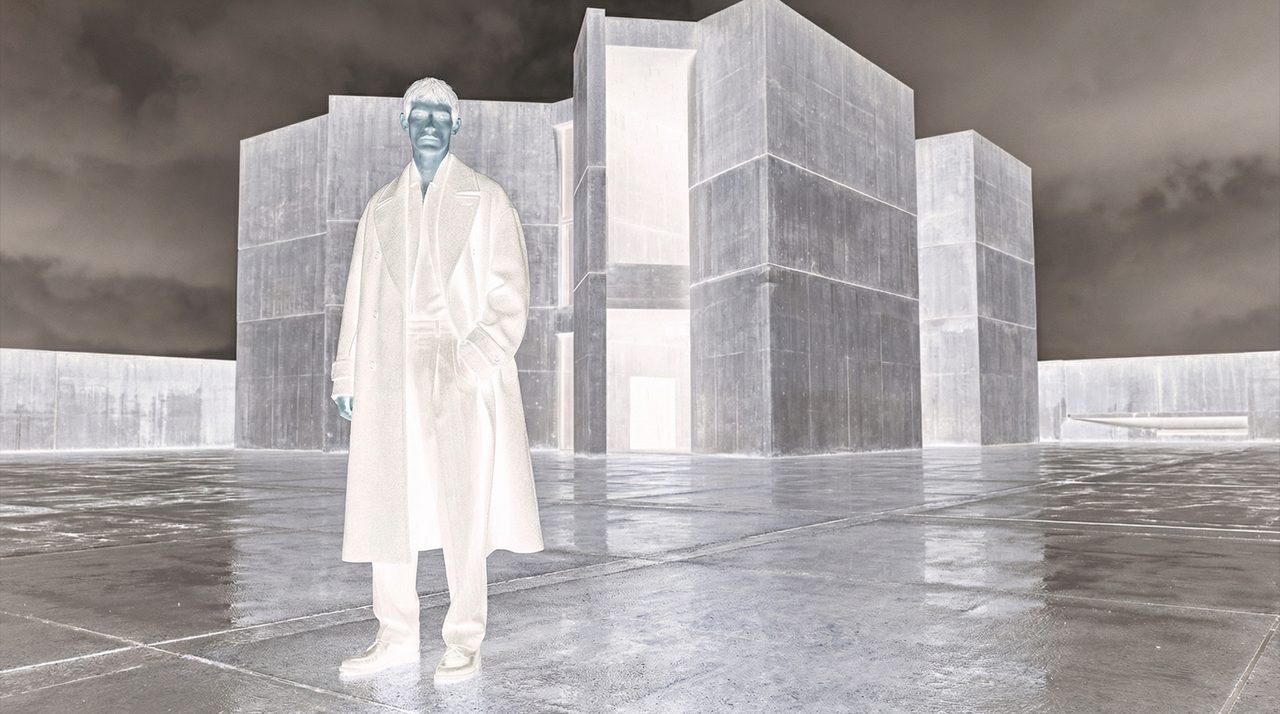
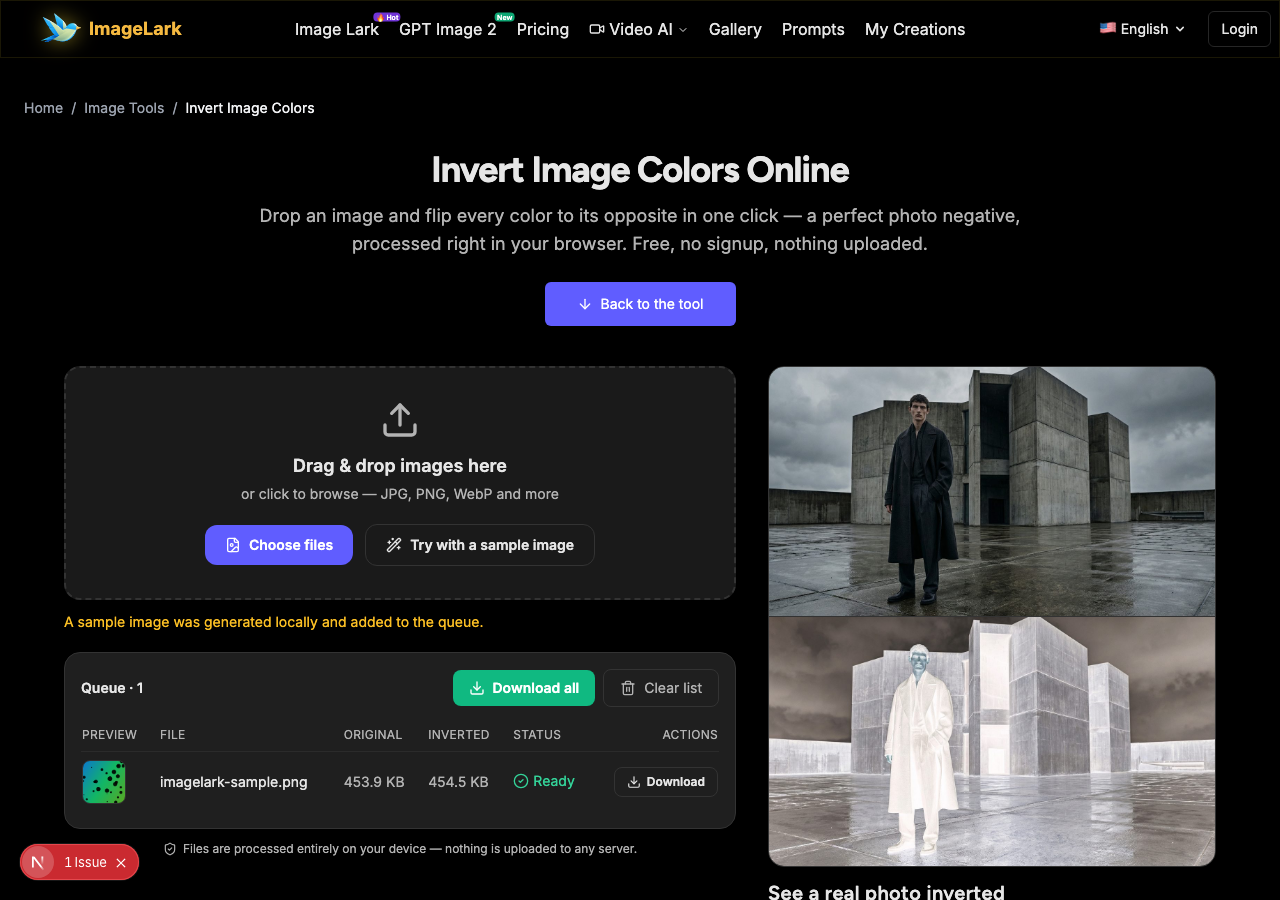
See a real photo inverted
Every pixel flips to its opposite: the photo becomes its own negative — blacks turn white, warm light turns cool, and highlights become shadows.
Free & unlimited
No credits, no account, no daily cap.
100% private
Processed on your device — never uploaded.
True 255−x inversion
Exact per-channel color negation.
Batch ready
Queue many files with live previews.
Free Online Image Color Inverter
This free online tool inverts image colors in one click, turning any photo into its exact negative: every pixel's red, green and blue channels are flipped to their opposite value (255 − x). It runs entirely inside your browser tab — your images are processed locally and never touch a server, so there is no upload wait, no file limit and no privacy trade-off.
Color inversion has more practical uses than it might seem. Film scanners and photographers invert image colors from scanned negatives back into positives. Designers flip a photo to inverted colors to check tonal balance, spot dust and scratches, or create surreal artwork. Dark-mode readers invert screenshots to make them readable at night, and doctors, scientists and archivists use negatives to reveal structures that hide in plain sight in the original. Whenever you need to invert image colors — for film restoration, night reading or negative art — this page gives you the exact 255 − x result.
How to Invert Image Colors in 3 Steps
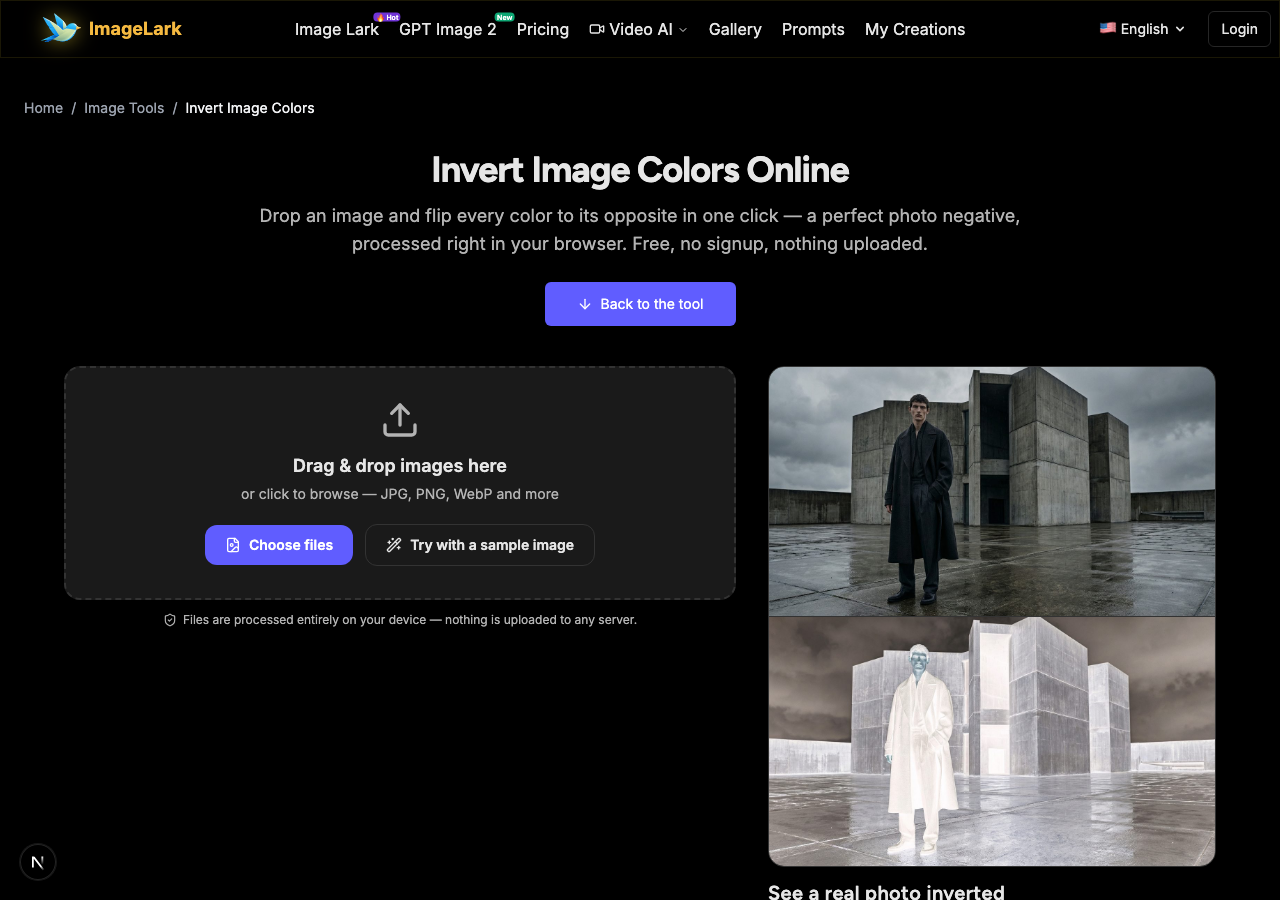
STEP 1
Add your image
Drag and drop a JPG, PNG or WebP file onto the tool above, or click to browse. You can queue many images at once — or press “Try with a sample image” to see the effect instantly.
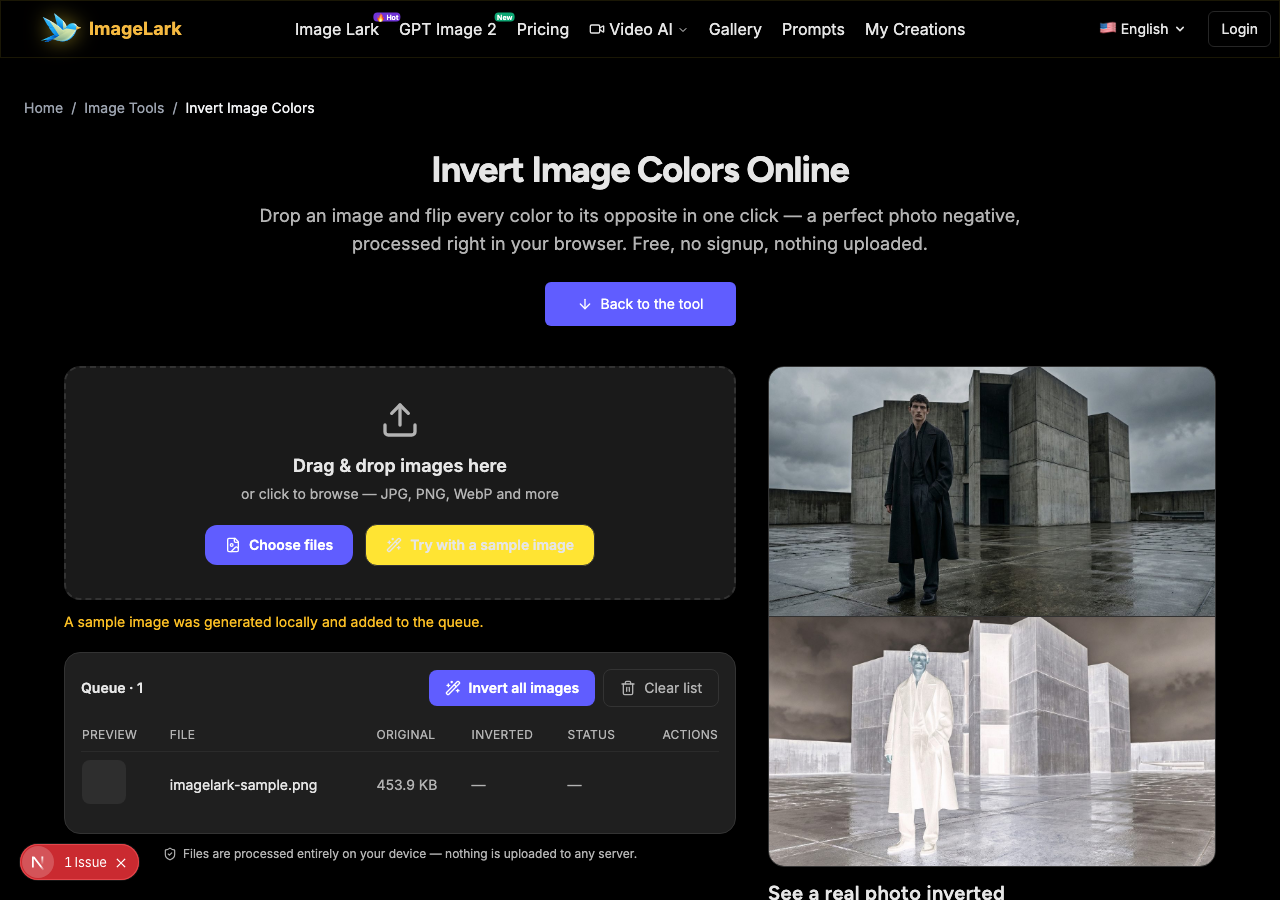
STEP 2
Invert the colors
Press “Invert all images”. Each pixel is negated locally in your browser, and the queue shows a live preview thumbnail of the negative next to the file's sizes.
STEP 3
Download the negative
Save individual results or take the whole batch with “Download all”. Output is lossless PNG, so the negative is pixel-perfect and ready for further editing.
Why Use ImageLark to Invert Image Colors
Free with no limits
Invert a single screenshot or a whole batch — no credits, no account, no watermark on the output. It is a browser tool, not a trial.
Exact, per-channel inversion
The tool negates every red, green and blue channel precisely (255 − x), giving the mathematically exact negative — not an approximation or a filter preset.
Your photos stay on your device
Processing happens in your browser tab. Nothing is uploaded or stored anywhere, so even confidential scans and personal photos are safe — and processing is instant because there is no server round-trip.
Live previews in the queue
Every inverted file shows a thumbnail preview before you download, so you can check the effect across a whole batch at a glance instead of opening each result.
Invert vs Grayscale: Two Different Effects
Inverting and desaturating are often confused, but they do completely different things. Inverting replaces every color with its opposite on the RGB wheel — light becomes dark and each hue becomes its complement — producing a negative. Grayscale keeps colors as they are but removes saturation, collapsing the image into shades of gray while preserving its brightness relationships.
Use inversion when you invert image colors to get the negative itself: restoring scanned film, creating high-contrast art, checking exposure and dust on a scan, or reading dark UI screenshots comfortably. Use grayscale when you want a black-and-white version that keeps normal light and shadow. And the two can combine: a film negative is usually both inverted and desaturated before it becomes a printable black-and-white positive.
A practical tip: if you are restoring scanned negatives, invert first and judge color after — most scanner software does this automatically, and doing it by hand with this tool gives you the same exact 255 − x result. If the inverted image also looks too flat, normal brightness and contrast tools or the AI photo enhancer can bring back punch afterwards.
Other quick transforms: the flip and mirror tool reverses orientation, and the WebP to PNG converter with the PNG to JPG converter handle format problems.
Use Cases: Who Inverts Image Colors
Film & scan restoration
Turn scanned film negatives into viewable positives, or invert positive scans to inspect dust, scratches and exposure problems that are almost invisible in the original.
Design & art
Flip artwork or photography into negatives for surreal posters, check tonal weight of a layout, or generate instant alternate colorways for creative work.
Reading & accessibility
Invert image colors on dark screenshots or slides to read them comfortably on bright screens — and vice versa for night reading — without installing any software.
Frequently Asked Questions
How do I invert image colors online?
Drop your image on this page and press “Invert all images” — the negative appears instantly with a preview, then download it. It works on JPG, PNG, WebP and other image formats, right in your browser, with nothing to install.
Can I invert a photo back to normal?
Yes. Inversion is its own inverse: applying 255 − x twice returns the original colors exactly. Re-uploading the inverted PNG and inverting it again restores the original image pixel-for-pixel, as long as the file is saved losslessly.
What is a negative image used for?
Negatives are used to restore scanned film, to inspect scans for dust and scratches, to create inverted art and posters, to check tonal balance in design work, and to make dark screenshots readable. Medical, scientific and archival workflows also rely on exact inversion.
Does inverting an image reduce quality?
No. Inversion only changes pixel values, not resolution or detail. This tool outputs lossless PNG, so the negative preserves every pixel of the original. Quality is only lost if you save the result to a lossy format like JPG afterwards.
Can I invert only part of an image?
This tool inverts the whole image for speed and simplicity. For partial inversion, download the full negative and combine it with the original in any editor — or use the AI image editor to describe the selective effect in plain language.
Is the invert tool free to use?
Completely free with no signup, no watermark and no daily limit. Everything runs in your browser, so your images are never uploaded, and the tool even works offline once loaded.
Verwandte KI-Bildtools
Ready to Invert Your Image?
Drop it above and invert image colors into an exact photo negative in one click — free, private and watermark-free.